Dual-Monitor Chromebook Docks: What Actually Works
By Anika Rao • 23rd Mar
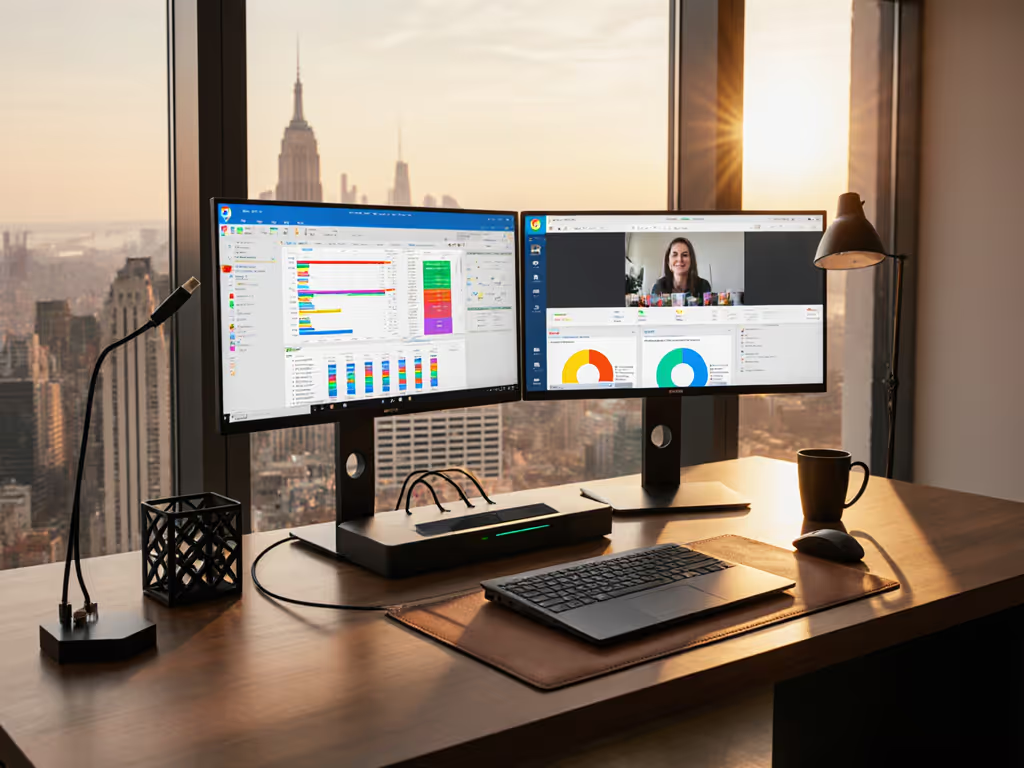
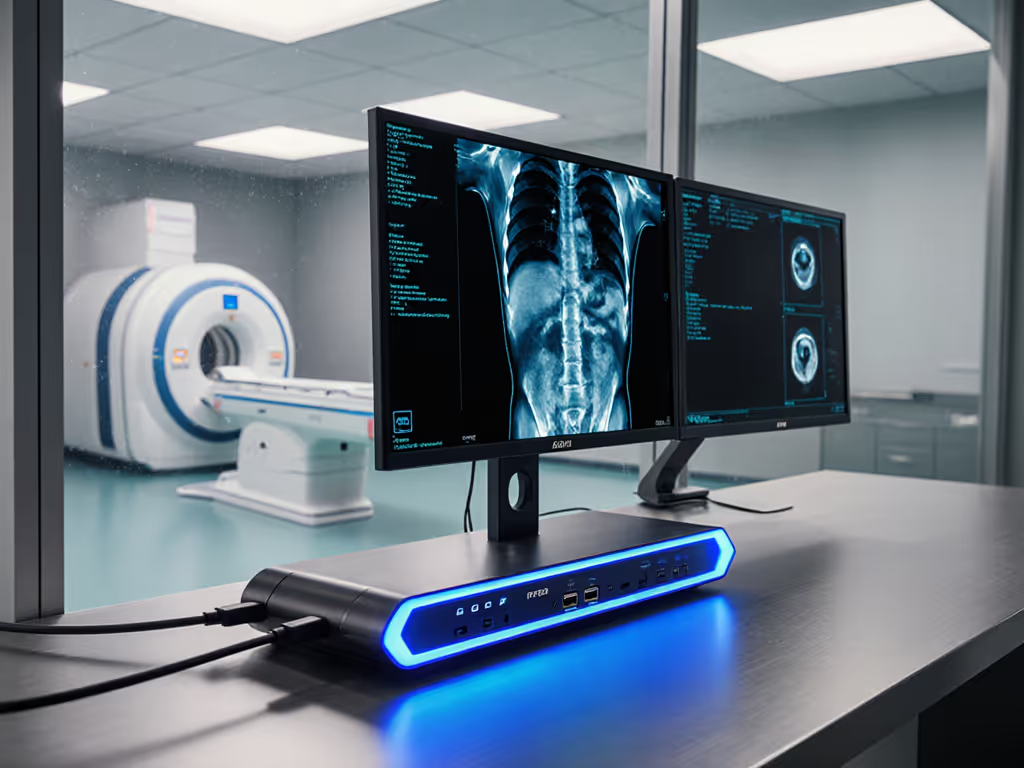
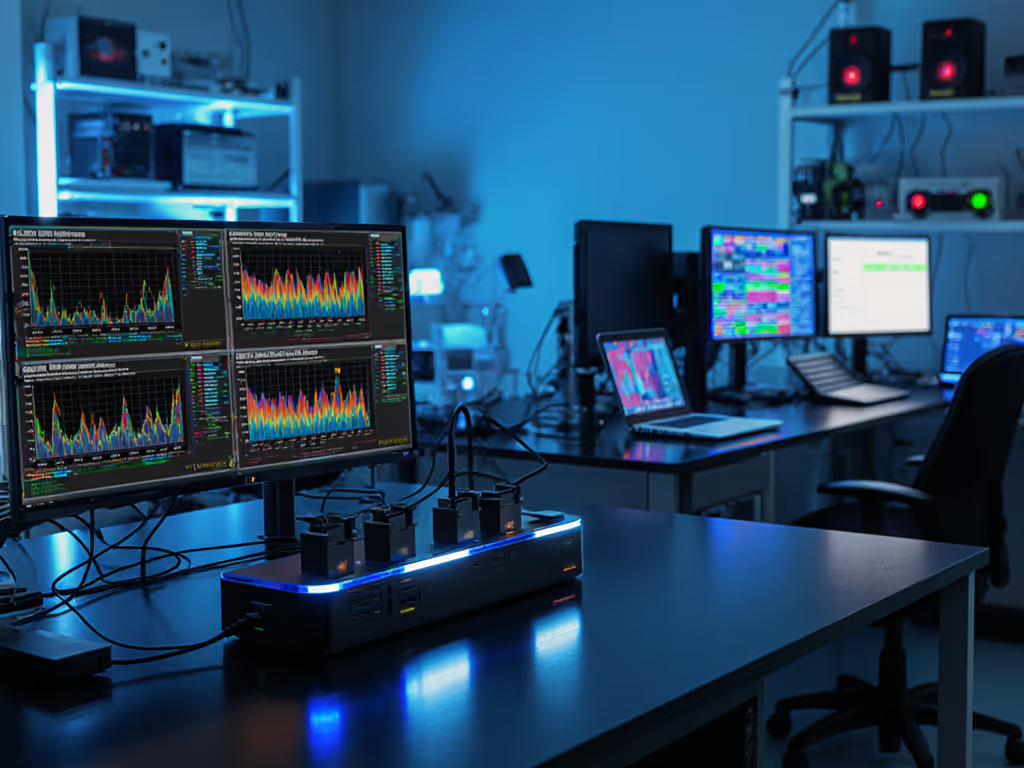
Chromebook dual monitor docking comparison reveals a hard truth: most docks claiming "4K support" deliver exactly that, until you need sustained pixel delivery under real workload. As someone who's stress-tested docks across finance floors and classroom rollouts, I've learned that the gap between spec sheet and stable output is where support tickets hide. This guide translates bandwidth math and certified compatibility into the decision matrix you need.
Why Chromebook Docking Is Harder Than It Looks
What makes Chromebook docks different?
Chromebooks impose constraints Windows and macOS don't. Unlike traditional laptops with dedicated GPU outputs, most Chromebooks funnel all external displays through a single USB-C or Thunderbolt port (often limited to two displays via Alt Mode multiplexing, and sometimes one if the hardware maxes out). Add to this: Chromebook peripheral support limitations vary wildly by OEM and generation. A 2023 Lenovo Duet 5 behaves nothing like a 2024 ASUS Chromebook Flip. See our top 5 verified Chromebook Enterprise docks for models we validated across multiple ChromeOS generations. The dock that works flawlessly for one fleet segment may flicker or drop audio for another.
This is why pixel stability, not marketing promises, is the only truth. If a dock can't hold a stable link under typical load (document editing, video conferencing, light spreadsheets), it's not a dock; it's a support ticket waiting to happen.
DisplayPort and HDMI bandwidth on Chromebooks
Here's the bandwidth math that most vendors gloss over: USB-C Alt Mode to dual external displays requires either:
- Dual DisplayPort 1.4 streams (standard on certified docks, full 32.4 Gbps per stream)
- HDMI 2.0 + DisplayPort 1.4 hybrid (more common for budget chromebook dual monitor docking)
- DisplayLink USB graphics transport (when Alt Mode is exhausted or absent)
The critical detail: if your dock tries to push dual 4K@60 Hz over a single USB-C 3.1 Gen 2 connection without MST (Multi-Stream Transport) or DSC (Display Stream Compression), you'll hit a wall. A finance-floor deployment I worked taught me this the hard way, triple 4K@60 Hz looked good on paper but flickered under real load because two of the three docks had insufficient DP lane allocation. Once I profiled link training and standardized on Thunderbolt 4 units with explicit 2x DP and certified 0.8 m cables, support tickets vanished.
The lesson: known-good beats theoretical maxima every time. For step-by-step configuration and troubleshooting, use our dual-monitor docking setup guide to eliminate cable and MST/DSC guesswork.
FAQ: Real-World Dual-Monitor Chromebook Docking
Q1: Can I reliably run dual 4K@60 Hz on a Chromebook dock?
A: Yes, but only with certified hardware on compatible Chromebook models. The Plugable UD-MSTHDC, which earned Google certification for Chromebook compatibility, supports dual 4K@60 Hz over HDMI or DisplayPort. It includes 60W charging, USB-A ports, and Ethernet, all critical for chromebook classroom compatibility in mixed-use environments.
However, older Chromebook generations (pre-2020) or low-end models with limited USB-C bandwidth may cap at dual 1080p or single 4K. Always verify your specific model against the dock vendor's tested compatibility matrix before procurement. Classroom IT leaders should test a pilot batch of the target Chromebook model with the selected dock before fleet rollout.
Q2: What's the difference between USB-C, Thunderbolt 3, and Thunderbolt 4 docks for Chromebooks?
A: Most Chromebooks ship with USB-C, not Thunderbolt. USB-C Alt Mode allows external display and power over one cable, but bandwidth is lower than Thunderbolt. Thunderbolt 4 (TB4) docks offer 40 Gbps full-duplex and are overprovisioned, leaving headroom for sustained peak loads, but most Chromebooks don't benefit from TB4's extra lanes because the GPU itself is the limiting factor. If you're weighing USB4 against Thunderbolt 4, our TB4 vs USB4 guide explains real-world display and compatibility trade-offs.
For education chromebook docking solutions, standard USB-C Alt Mode docks are cost-effective and proven. The calculus: USB-C Gen 2 docks reliably deliver dual 4K@60 if the Chromebook GPU supports it; TB4 is overkill unless you're mixing in MacBooks (where single-display limits on M1/M2 demand more bandwidth to work around).
Bandwidth allocation matters most when you're combining high-res displays with power-hungry peripherals (4K webcams, USB audio interfaces). A 65W dock struggling to deliver power while streaming dual video will eventually drop frames or throttle the system.
Q3: What about HDMI 1.4 vs. DisplayPort for Chromebook docking?
A: HDMI 1.4 tops out at 4096×2160@30 Hz or 1920×1200@60 Hz dual-stream. That 30 Hz cap is a silent killer in productivity setups, scrolling feels sluggish, and users file tickets blaming the dock when the real culprit is the wrong cable or port pairing.
DisplayPort 1.4 removes that ceiling and scales to dual 4K@60 Hz per stream. If your dock lists HDMI 1.4, it's not the bottleneck, but it won't sustain the pixel promises for modern displays. Look for docks explicitly rated HDMI 2.0 HBR3 (or higher) paired with DP 1.4. The StarTech lineup, for example, bundles DP 1.4 and HDMI 2.0 HBR3, allowing chromebook displayport limitations to be worked around by intelligent port assignment.
If pixels stutter, we chase the bottleneck until silence.
Q4: Should I choose a dock with HDMI or DisplayPort outputs for classrooms?
A: Both. A mixed-output dock (2× HDMI + 2× DisplayPort) is insurance against budget education docking stations limitations and monitor inventory chaos. Classrooms often inherit displays of different ages and specs. A single-standard dock forces you to replace working monitors, adding cost and e-waste.
The Kensington SD4760P, for instance, supports up to three external displays via a mix of HDMI and DisplayPort, including 4K@60 Hz dual-monitor output. This flexibility reduces standardization overhead and lets you deploy the same dock across cohorts with varying display inventories.
Budget consideration: multi-output docks cost $150 to $250 per unit but outlive one generation of Chromebooks. If the dock is universally compatible across future laptops and OEMs, the cost-per-year amortizes significantly.
Q5: How much charging power do I need in a Chromebook dock?
A: Most modern Chromebooks need 30 to 65W to charge while under load (video conferencing + spreadsheets). For power budgeting across mixed fleets, see our USB-C power delivery guide to avoid under-wattage pitfalls. A dock rated 60W is the practical floor for productivity setups. Anything below 45W risks battery drain during peak usage, eroding user confidence and forcing return-to-outlet behavior, defeating the single-cable promise.
If your fleet includes larger Chromebooks or 2-in-1s, aim for 100W docks (like the ALOGIC DX3) to leave margin and future-proof against higher-draw models. In hoteling environments, over-provisioning charging (100W+ for a 60W device) is worth the cost premium.
Related Articles