USB4 Gen 3 80Gbps: Docking for Professionals
By Chen Wei • 7th Mar
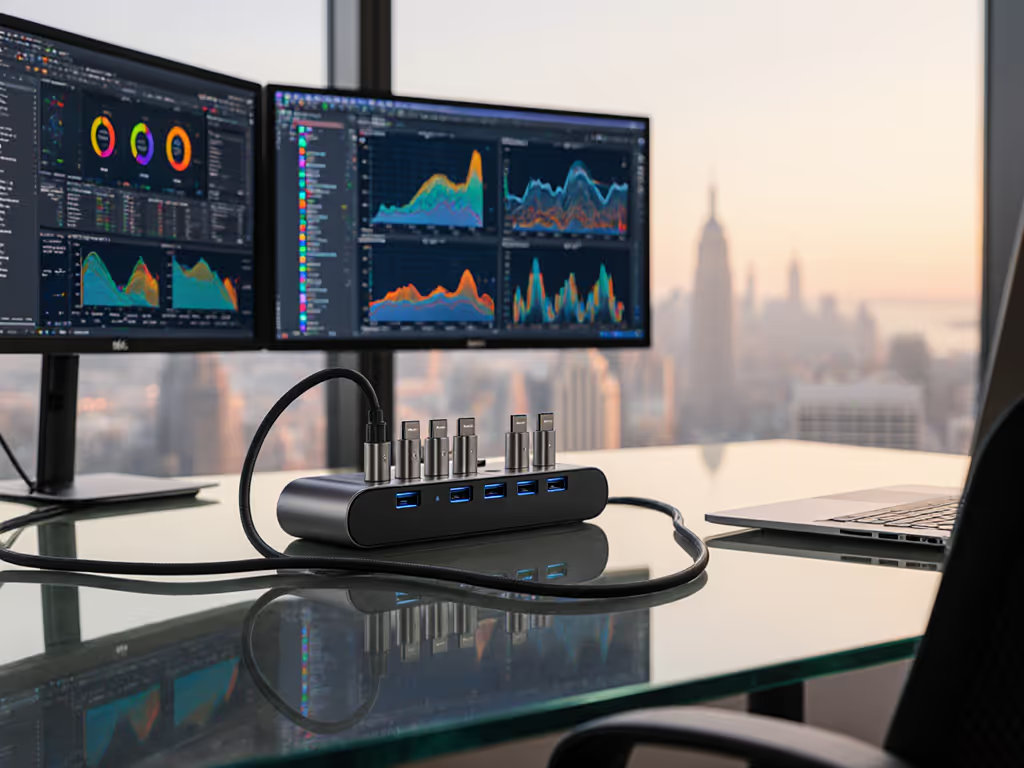
USB4 Gen 3 80Gbps docking benefits represent the convergence of unified connectivity and extreme bandwidth, two prerequisites for heterogeneous, high-performance workstations in mixed-OS enterprise environments. Unlike USB 3.0's 5 Gbps ceiling, USB4 Gen 3 delivers upstream transfer speeds of up to 80Gbps for USB4 V2 implementations, doubling the V1 standard's 40Gbps throughput. This isn't marketing oxygen; it's the practical difference between a 50GB 4K video transferring in under two minutes versus ten, and between dual 4K displays at 60Hz staying rock-solid versus dropping to 30Hz when data and video streams collide. For a deeper technical breakdown of 80Gbps capabilities and when they matter, see our USB4 Gen 3 80Gbps explained guide.
For IT leaders managing fleets of ThinkPads, MacBook Pros, and Dell XPS units (often mounted to shared docks in hot-desk or hybrid spaces), the question isn't whether USB4 Gen 3 is faster than its ancestors. It's whether the added bandwidth and 100W+ power delivery actually solve the incidents filling your ticket queue. Documentation beats intuition; precise pairings make universality real.
Understanding USB4 Gen 3 Specs and Real-World Impact
USB4 is built upon the Thunderbolt 3 protocol and unifies the USB and Thunderbolt ecosystems. USB4 Gen 3 (also called USB4 V2) escalates this convergence with 80Gbps throughput and up to 240W of power delivery via the USB Power Delivery 3.1 standard. This matters because mid-range mobile workstations (think Dell Precision or MacBook Pro M2 Max) draw 85-120W under full CPU and GPU load, and legacy 65W docks create a battery drain death spiral during video rendering or data transfers.
The bandwidth jump is equally critical. USB4 Gen 3's dynamic bandwidth sharing allows simultaneous high-speed data tunneling (20+ Gbps), video streams, and power delivery without latency spikes. Contrast that with USB 3.0, which maxes out at 5 Gbps and 900mA power delivery, barely adequate for a mouse and keyboard, let alone an external SSD and a 4K monitor.
Translate specs into steps, and steps into consistent outcomes.
Display and Bandwidth Requirements for Professional Workflows
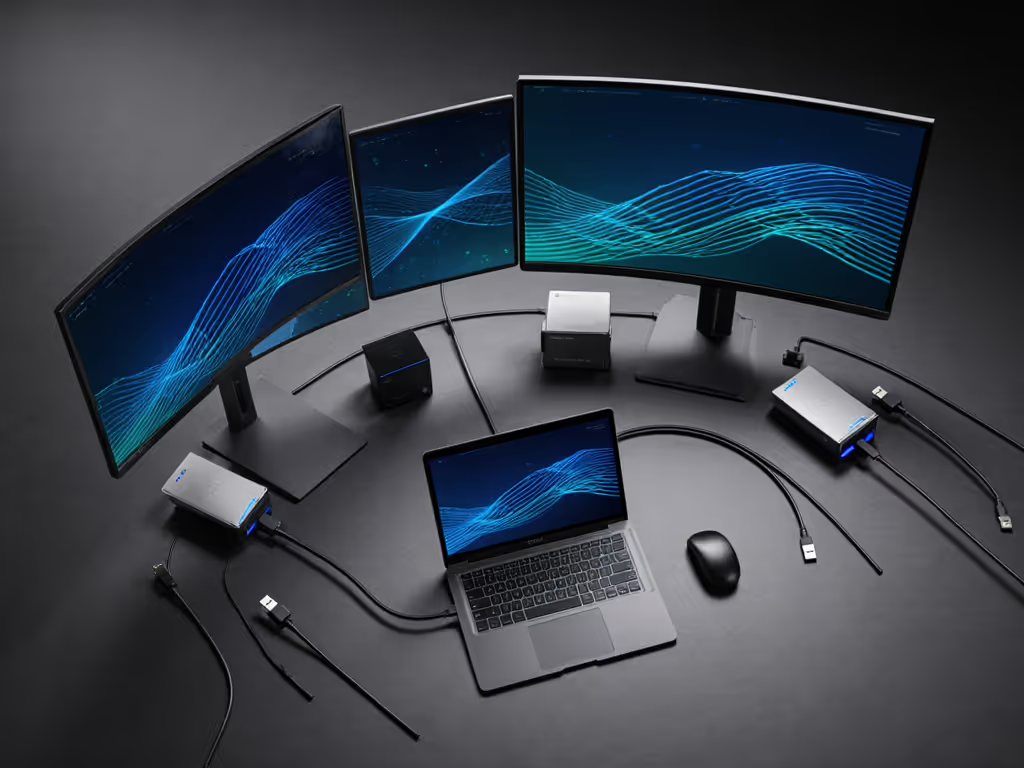
Where USB4 Gen 3 docking becomes non-negotiable is in creative and analytical workflows. A dual 4K@60Hz setup over USB-C requires roughly 32 Gbps of bandwidth when uncompressed. Add a 10Gbps Ethernet uplink and a sustained SSD write at 3 Gbps, and USB4 V1's 40Gbps ceiling shows strain. USB4 Gen 3's 80Gbps headroom means your 6K display docking requirements (increasingly common in video production and CAD environments) actually work without resorting to compression tricks or daisy-chaining Thunderbolt cables across three desks.
Microsoft's Display Stream Compression (DSC) and MST (Multi-Stream Transport) can deliver dual 4K or even single 8K via lower-bandwidth links, but both introduce latency floor-wax and leave less air for other devices. For step-by-step configuration, use our reliable dual-monitor docking guide. Exact SKUs or it didn't happen: if your RFP specifies "supports 6K displays without compression," USB4 Gen 3 with 80Gbps and a verified dock partnership is the only ship that sails.
Power Delivery That Sustains Workloads
One anecdote crystallizes the difference. A nonprofit we consulted mixed Macs, ThinkPads, and Chromebooks across hand-me-down monitors. When we standardized the dock inventory, we discovered the previous USB-C 3.2 docks were capping at 65W power delivery. MacBook Pro M1 users were seeing battery drain even when plugged in, because the dock's internal PSU was already feeding two external SSDs and a networked printer. We rebuilt the fleet with USB4-ready docks delivering 100W minimum, added OS-level power preference toggles on macOS (Energy Saver -> Power Adapter tab), and new-staff day-one setups stopped derailing training. If power budgets are your bottleneck, start with our USB-C power delivery guide to right-size wattage across laptops and docks.
USB4 Gen 3 docks now ship with 140-240W power delivery capacity, allowing a single cable to feed a 16-inch mobile workstation and an external GPU or dual external SSDs without needing a separate power brick for each peripheral. That one detail alone (unifying laptop charge, display connection, and storage bandwidth into a single cable) is why IT departments are pivoting away from proprietary docking ecosystems.
Backward Compatibility and Multi-OS Reality
USB4 Gen 3 devices maintain full backward compatibility with USB 3.2, USB 2.0, and Thunderbolt 3 and 4. This isn't lip service; it means a Windows Dell Latitude with USB-C 3.1 will still dock reliably, even if it can't exploit the full 80Gbps. But that's also where spec translation becomes critical. A USB4 Gen 3 dock will work with older USB-C laptops; it will not deliver USB4-class bandwidth or power unless both the dock and the laptop port natively support it.
OS-specific gotchas:
- macOS M1/M2/M3: Single external display limit if you're using HDMI or USB-C Alt Mode; requires Thunderbolt 4 or specific USB4 partnerships for dual 1440p. macOS Ventura and later have improved USB-C Alt Mode support, but exact dock firmware versions matter.
- Windows 10/11: DisplayLink drivers can break after major updates; verify dock firmware is pre-updated before fleet deployment.
- Linux: Thunderbolt 3 and USB4 support varies by kernel version; 5.15+ is safer ground.
Cable Selection: Where Most Deployments Fail
This is the paragraph that shifts failure rates. A USB4 Gen 3 dock is only as fast as its dock-to-host cable. USB4 Gen 3 (80Gbps) cabling must be e-marked and rated for 240W power delivery; generic USB-C cables will default to USB 2.0 speeds (480 Mbps) and 15W power delivery. We've seen orgs buy 50 USB4 Gen 3 docks and undo the purchase with a $2 cable pack from a discount supplier. Avoid cable pitfalls with our dock cable and accessory guide.
Specific requirements:
- Cable rating: Look for "USB4 Gen 3" or "Thunderbolt 4" explicitly on the cable and box; USB-C 3.2 cables will not negotiate USB4 speeds.
- E-mark chip: Passive cables longer than 0.8m (2.6 feet) must have an e-mark chip to verify power and data specs.
- Length: Keep dock-to-laptop cable under 2 meters (6.5 feet) for 80Gbps; longer runs degrade to 40Gbps.
- Power rating: If your dock supports 240W and your laptop needs 140W, the cable must support 240W, not 100W.
Exact SKUs or it didn't happen. Specify the cable part number in your dock bundle spec sheet, and include it in the box; do not trust end-users to source the right one.
Operational Deployment Patterns
-
Static Workstations (knowledge workers, executives): USB4 Gen 3 docks with 2-4 display outputs, 1Gbps Ethernet, and 100W+ power suffice. Firmware stability over peak performance is the win.
-
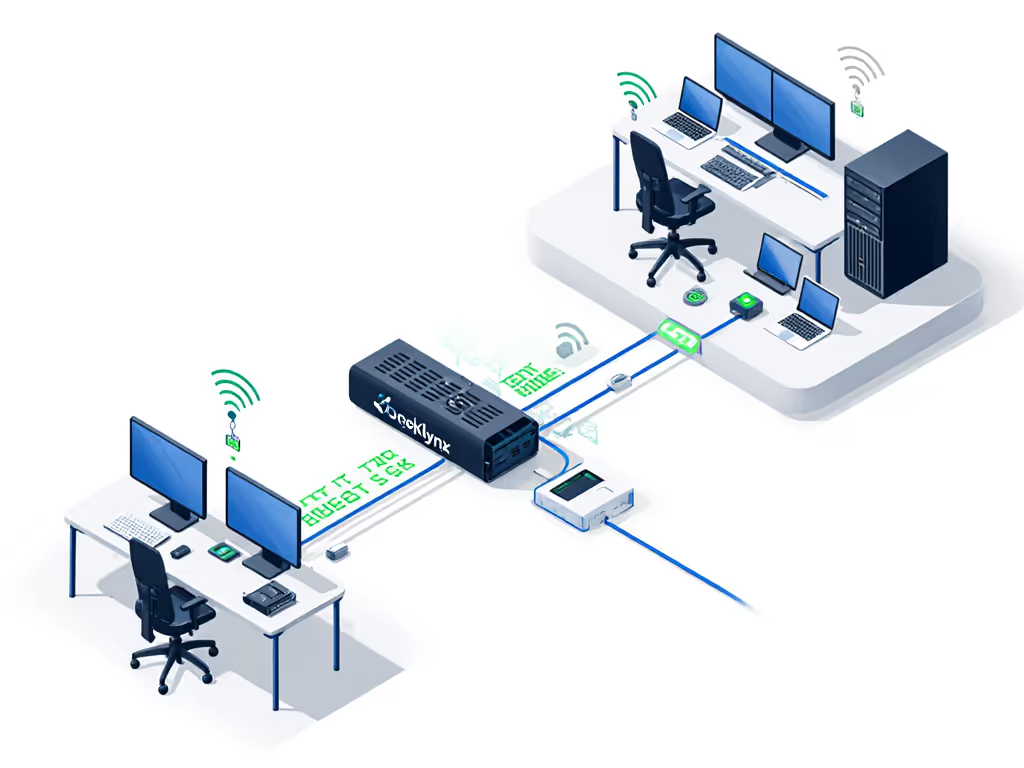
Hybrid Hot-Desking (traders, analysts, rotating staff): Require rock-solid Ethernet link detection (MAC passthrough for DHCP/PXE), minimal enumeration delay (<3 seconds), and proven cross-OEM compatibility. USB4 V2's 80Gbps is luxury; known-good OS settings and cable discipline are necessity.
-
Creative/High-Performance (video editors, engineers, CAD): Demand 6K display docking requirements, sustained 120W+ power, and external GPU or storage bandwidth. USB4 Gen 3 is the minimum bar; monitor firmware versions and test external PCIe throughput before fleet rollout.
Future-Proofing and Lifecycle Stability
USB4 Gen 3 devices will remain viable through 2028-2030 based on current OEM roadmaps, but "future-proof" is a lie you tell vendors. What matters is a dock with a published end-of-life date, documented firmware release cadence, and multi-platform driver support (Windows, macOS, Linux). Verify that your dock vendor publishes a public firmware changelog and a supported-device matrix; if they don't, treat that dock as end-of-life already.
The pitch for USB4 Gen 3 docking isn't that it's the latest and greatest. It's that 80Gbps, 240W power delivery, and Thunderbolt 3/4 backward compatibility lower the variance in your heterogeneous fleet. Fewer cable workarounds. Fewer display anomalies. Fewer support tickets. That's the math that justifies the spend.
Exploring Your Docking Strategy
If your fleet still leans on USB 3.2 or proprietary docking ecosystems, auditing your real-world bandwidth usage and power consumption is the first step. Capture 20-30 dock-connected workdays across your highest-demand users; measure actual display refresh rates, Ethernet uptime, and power delivery stability. Then map that data to USB4 Gen 3 specs. You'll quickly see whether you're power-constrained (100W dock insufficient), bandwidth-choked (dual 1440p refusing to stay at 60Hz), or simply over-cabled with unused ports.
For organizations managing mixed-OS, multi-OEM fleets, the path forward is a published "known-good dock matrix," a table mapping specific laptop models, OS versions, and display targets to vetted dock models, exact cables, and required firmware baselines. That matrix is your single source of truth. It cuts the guesswork. It scales new hires and hot-desk turnover. It's how teams make docking infrastructure invisible and turn IT from a cost center into a credibility builder.
Start with a small USB4 Gen 3 pilot: one dock model, three laptop types, two OS versions, and one monitor configuration. Document everything: cable part numbers, firmware versions, BIOS settings, OS toggles, and failure modes. Then expand. That's not bleeding-edge work; that's the foundation of reliability.
Related Articles