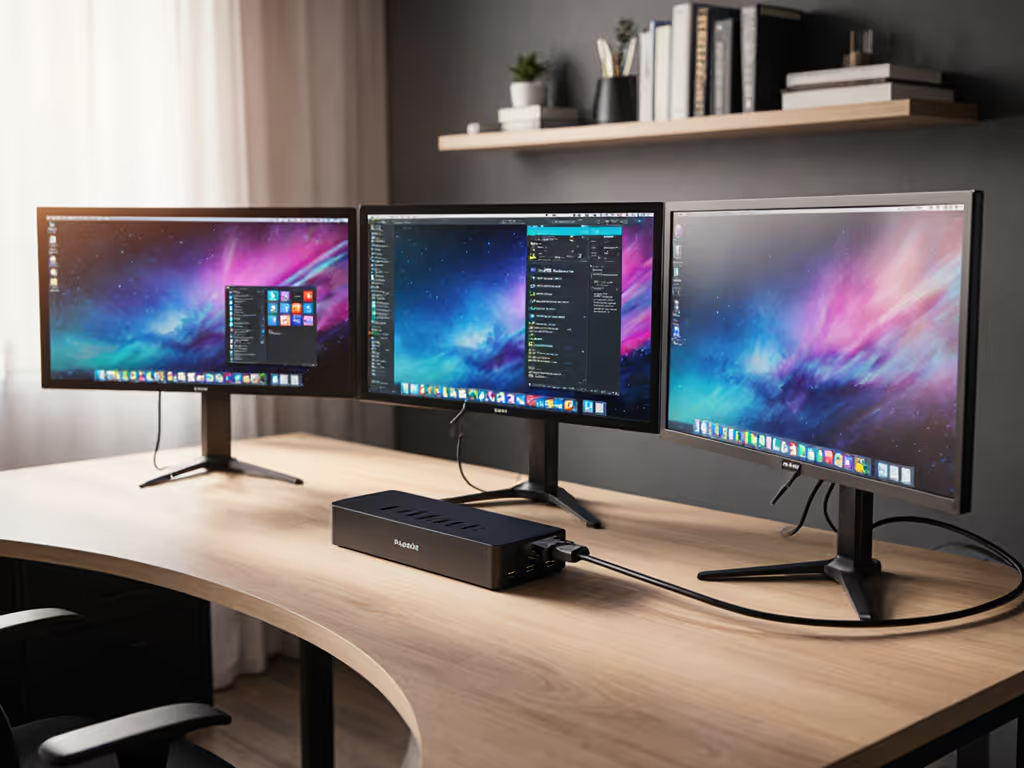
Enterprise Thunderbolt 5 Docking: Apple Silicon Standards
By Omar Haddad • 4th Apr
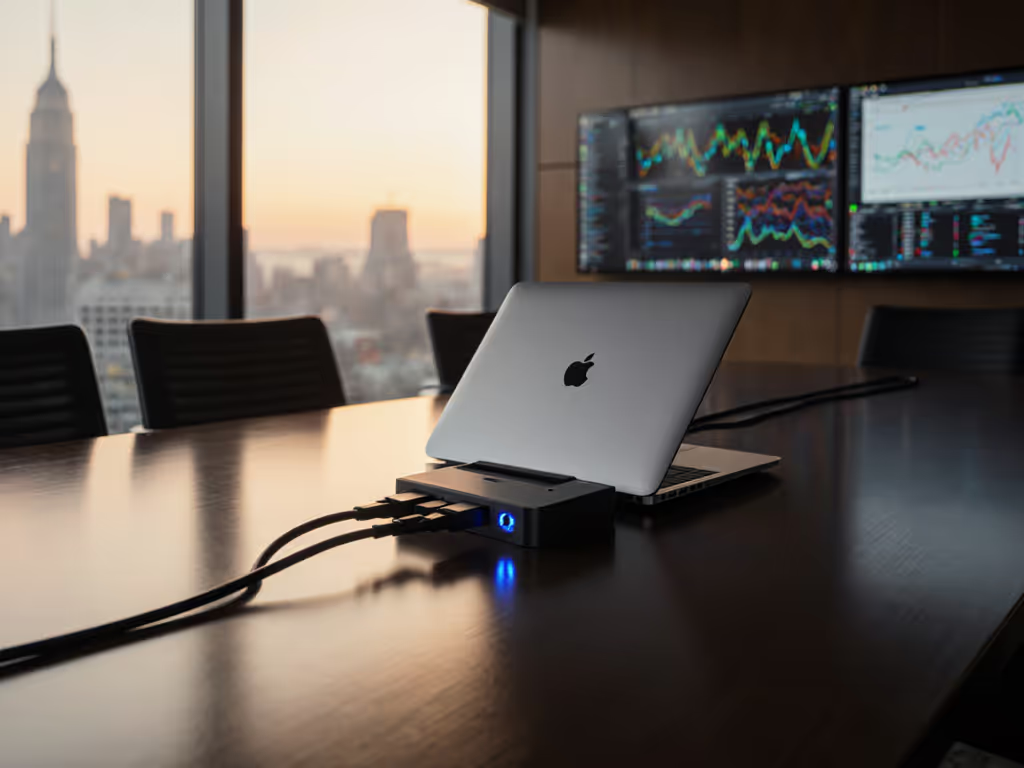
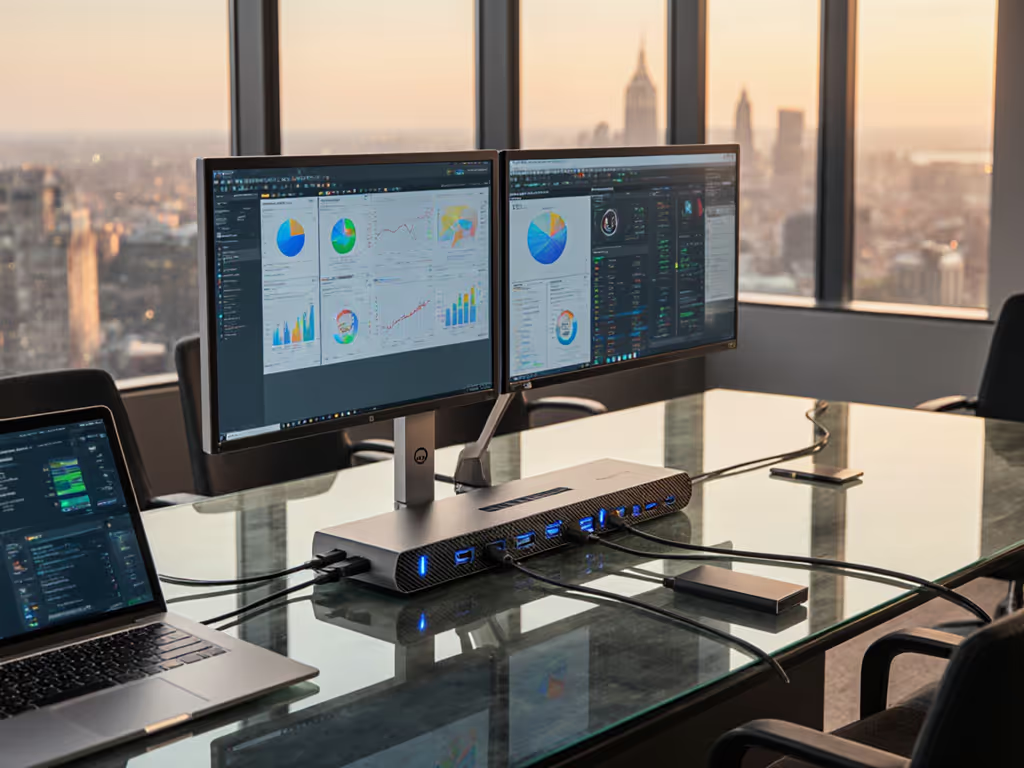
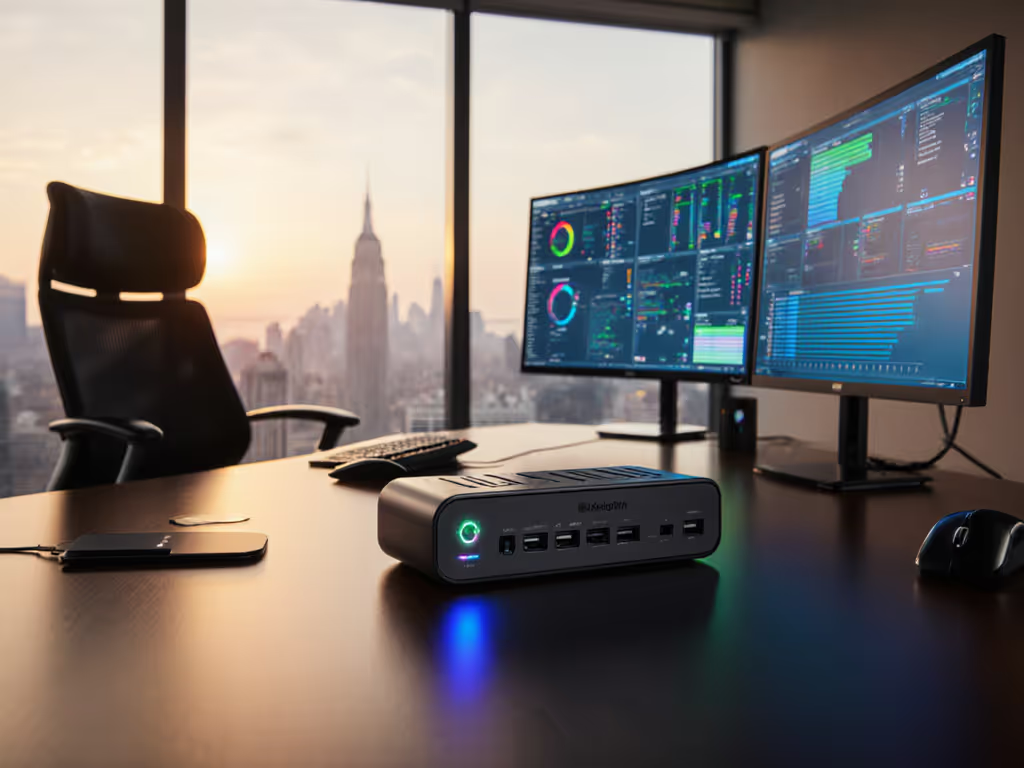
Deploy Thunderbolt 5 dock infrastructure for Apple Silicon-equipped enterprises and you're not just buying peripherals, you're standardizing your endpoint power, display, and networking around a specification that finally has enough bandwidth headroom to survive a refresh cycle without becoming a bottleneck. Thunderbolt 5 delivers 80 Gbps of bi-directional throughput, double that of Thunderbolt 4, and native support for multiple 8K displays or sustained 4K multi-monitor workloads without the display enumeration chaos that plagued earlier generations on macOS M1/M2 platforms. This article walks IT leaders through the operational realities of Apple Silicon enterprise docking solutions, translates spec sheets into deployment risk, and shows you how to collapse dock SKU sprawl into repeatable, support-friendly bundles.
Why Thunderbolt 5 Matters for Apple Silicon Fleets
Apple Silicon Macs (from M2 through M4 Pro and Max) introduced significant engineering constraints around external display architecture. Earlier M1 and M2 MacBook Pro models shipped with a single external display limit via HDMI 1.4 or Thunderbolt; driving two 4K monitors required DisplayPort MST (Multi-Stream Transport) via a compatible dock or hub, and even then, performance was inconsistent. macOS Sequoia 15.3 and later resolved many of these limitations, but only when paired with verified Thunderbolt 5 docks on machines with native TB5 ports. For a concise spec overview and rollout expectations, see our Thunderbolt 5 docking primer.
Thunderbolt 5 is technically backward compatible with Thunderbolt 3 and Thunderbolt 4 devices, including existing cables up to 1.8 meters in length. However, enterprise reality differs from marketing: Apple Silicon Macs with TB5 ports require Sequoia 15.3 or later to achieve full TB5 performance, particularly for external SSDs accessed through TB5 docks and hubs (a critical detail for your procurement matrix). Machines relying on older OS versions or USB4 hub fallbacks will not unlock the bandwidth gains, meaning your dollar-per-port efficiency actually declines if your fleet spans multiple OS versions or hub architectures.
This is where standardization beats variety. Your dock procurement decision is not about "the dock that does everything" but rather about choosing a single tested kit per user persona, locking in the OS baseline required to make it work, and treating firmware and driver updates as mandatory operational baselines, not optional enhancements.
1. Define Your Display Workload Profile First
Before selecting a Thunderbolt 5 dock, audit your actual display demand by user role and space type. "Enterprise" encompasses hot-desk knowledge workers (1-2 external 1080p displays), hybrid traders and creators (dual 4K@60 or ultrawide 5K), and mission-critical engineering teams (three 6K displays or higher refresh rates).
Thunderbolt 5 can dynamically rebalance bandwidth when video-intensive workloads are detected. For instance, when you connect an 8K monitor, Thunderbolt rebalances available bandwidth to allow three PCIe lanes at 40 Gbps to flow in one direction (120 Gbps total) and one lane at 40 Gbps in the other. This asymmetry is crucial: if your dock also needs to drive high-speed storage and maintain Gigabit Ethernet simultaneously with three displays, the bandwidth allocation will shift in real time, and sustained data rates through an external SSD will drop accordingly.
Your procurement matrix must explicitly state:
- User role (e.g., trader, developer, knowledge worker)
- Display count and resolution (e.g., dual 4K@60, single 6K, or ultrawide 5K@75)
- External storage and bandwidth requirement (e.g., sustained >500 MB/s for SSD or <100 MB/s for backup archives)
- Required OS version (e.g., macOS Sequoia 15.3+, Windows 11 22H2+)
- Verified dock SKU and cable spec (e.g., TB5 dock model, E-marked 40 Gbps cables, 100W or 140W PSU)
Do not skip this step. I've seen enterprises deploy a single "universal" dock model only to discover that hot-desk machine A drives two displays at 60 Hz while identical machine B on the same dock firmware revision stops at 30 Hz (a ticket-generation engine that no amount of troubleshooting resolves because the underlying dock bandwidth budget was never tuned to the actual fleet mix).
2. Mandate OS and Firmware Baselines
Thunderbolt 5 docks are not firmware-agnostic. Apple's macOS Sequoia 15.3 or later is required for full TB5 performance; prior versions will fall back to TB4 behavior or exhibit intermittent display and SSD performance issues. If you're troubleshooting display wake issues or black screens after sleep, follow our dock firmware update guide to stabilize TB5 behavior across macOS updates. Windows 11 machines similarly require up-to-date Intel Thunderbolt control software or the newer Thunderbolt Control Center from the Microsoft Store.
The practical deployment implication: your dock rollout is coupled to your OS update schedule. If you standardize on a Thunderbolt 5 dock but your Mac fleet straddles macOS Sequoia and Sonoma, you've created a support matrix where the "same" dock behaves differently per machine. Tickets will spike until every user is on the baseline OS version.
Establish a single macOS and Windows version requirement for Thunderbolt 5 dock users, and budget 6-8 weeks for full-fleet compliance before declaring the dock standard "production-ready." Do not assume that existing vendor-supplied driver packages will auto-update; use IT governance tools (Jamf for macOS, Intune for Windows, MDM for both) to enforce the baseline.
For Windows deployments, if machines are still running Intel's legacy Thunderbolt Software (common on older ThinkPad and EliteBook fleets), there is a documented upgrade path: download newer DCH drivers for the Thunderbolt device via Device Manager, browse to the INF folder in the downloaded package, and let Windows automatically pull the new Thunderbolt Control Center from the Microsoft Store. However, this manual path is a liability in large fleets; migrate older machines to a supported baseline OS version rather than maintaining a patchwork of software versions.
3. Power Delivery Must Match Sustained Workload, Not Peak Spec
Thunderbolt 5 docks ship with power supplies ranging from 65W to 140W. To right-size adapters and avoid underpowered deployments, use our power delivery guide for wattage planning and safety limits. A 100W PSU is often advertised as "suitable for MacBook Pro," but that rating is peak delivery under ideal conditions, not sustained output under thermal load.
Calculate your actual power requirement as follows:
- Laptop charging: M2 MacBook Pro (14–16 inch) = 96–140W; M4 MacBook Pro = 120–140W
- External displays: per additional 4K display @ 60 Hz, add 15–25W for drive electronics
- External SSD via TB5: add 10–15W for sustained throughput (e.g., backup or video ingest)
- USB peripherals (cameras, audio interfaces, hubs): add 5–10W
If your docked workload is "charge the machine + drive two 4K displays + run a Thunderbolt SSD + maintain three USB 3.0 peripherals," your minimum safe PSU is 140W. A 100W dock will not throttle immediately, but the machine will charge slowly, drain under load, or trigger thermal throttling (all silent failures that users won't report as "dock related" but will generate hidden ticket volume through complaints of performance degradation).
Your procurement spec must mandate: Power Supply wattage = (laptop max charging + 80W for all peripherals). For Apple Silicon Macs on Thunderbolt 5, default to 140W and treat 100W as a cost-cutting compromise only for knowledge-worker light-load personas.
4. Ethernet, Networking, and MAC Address Passthrough
Thunderbolt 5 docks often integrate Gigabit Ethernet (some support 2.5 Gbps or higher). However, network bridging and DHCP behavior differs by dock vendor and macOS version. A dock's Ethernet port may assign a unique MAC address per connection, or it may pass through the host machine's MAC (a critical distinction for MAC-filtering network access policies, PXE boot sequences, and wake-on-LAN scenarios).
Enterprise requirements:
- Verify MAC address passthrough with your dock vendor before purchase. macOS expects Ethernet to behave as a direct link; if the dock assigns its own MAC, your network team may flag the connection as unauthorized or block PXE boot.
- Test with your MDM and network access control (NAC) solution in a pilot group. If the dock's MAC conflicts with your policy database, you've created a silent deployment blocker that will surface in production.
- Confirm Ethernet link stability under sleep-wake cycles. Some docks drop the Ethernet link during sleep and take 5–10 seconds to re-establish it on wake, causing momentary loss of network time sync, corporate VPN renewal, or Slack reconnection.
Do not rely on vendor marketing spec sheets for MAC address behavior; test with your network team in a lab before committing to fleet-wide deployment.
5. Multi-Display Validation on Apple Silicon
Thunderbolt 5 enables support for multiple 8K displays, but Apple Silicon Macs have their own internal GPU limits. For step-by-step multi-monitor setup on macOS and Windows, see our dual-monitor docking guide. M2 MacBook Pro can drive one external 6K display or two 4K displays simultaneously; M4 Pro and Max can drive more, but sustained 4K@60 dual-display workloads still depend on the dock's implementation of DisplayPort Multi-Stream Transport (MST) or, on newer setups, native DisplayPort 2.1 and dynamic bandwidth allocation.
Thunderbolt 5 docks that support Thunderbolt Share (enterprise KVM functionality for two-PC control via a single keyboard, mouse, and display) add another layer of complexity: the dock must arbitrate display bandwidth between two connected hosts, which can create asymmetry in display resolution or refresh rate per machine.
Your validation checklist:
- Connect a MacBook Air M3 or later to the candidate dock with your intended display stack (e.g., two 4K@60 or one 5K@60).
- Verify sustained SSD throughput (e.g., run a 50 GB file copy to an external Thunderbolt SSD) while both displays are active. If throughput drops below 400 MB/s, the dock's internal bandwidth arbitration is choking.
- Test wake from sleep. Confirm that both external displays re-engage within 2 seconds of machine wake.
- Validate with Adobe Premiere Pro, DaVinci Resolve, or Figma if your fleet includes creators. These applications stress display enumeration and refresh-rate switching in ways that static test patterns do not.
Document the exact monitor models, dock firmware version, and macOS version used in the validation. This becomes your "known good" reference state; any deviation in downstream deployment warrants re-validation before rollout.
6. Firmware Update Strategy and Lifecycle Planning
Thunderbolt 5 docks, like all modern peripherals, require periodic firmware updates. These updates address performance regressions, display compatibility issues, or power delivery anomalies. However, many enterprise dock deployments ship without a clear firmware baseline or update governance.
Your operational mandate:
- Identify the current firmware version on all deployed docks within your first 90 days. Create a spreadsheet with dock SKU, serial number, deployed location, and current firmware version.
- Establish a baseline firmware version that has been validated against your OS versions, display targets, and power draw profile. This becomes your new-deployment standard.
- Test any firmware update in a lab or pilot group before pushing to production. A dock firmware update that improves TB5 SSD performance may accidentally introduce a display wake-from-sleep regression (common enough that it warrants verification before roll-out).
- Document the firmware update method. Some docks auto-update via a connected Mac or Windows machine; others require manual flashing via a USB stick or proprietary management tool. If manual flashing is required, budget for a technician visit or remote hands session per site.
Firmware stability is not optional in enterprise fleets; a bad firmware version deployed to 500 docks is far more costly than a disciplined per-dock update cycle.
7. Standardize on One or Two Dock SKUs per Persona
Here is where the procurement algebra becomes clear: standardization beats variety; predictability is the cheapest insurance you can buy.
Define no more than two Thunderbolt 5 dock SKUs across your entire fleet:
- SKU A: "Hot-Desk Standard" (e.g., 4-port TB5 hub with 100W PSU, Gigabit Ethernet, two DP outputs, three USB-A 3.0 ports). Cost ~$180–220 per unit. Target users: 80% of your fleet (knowledge workers, contract staff, interns).
- SKU B: "Creator/Engineer Kit" (e.g., 6-port or docking station with 140W PSU, Gigabit Ethernet, four DP outputs, Thunderbolt passthrough, Kensington lock). Cost ~$280–350 per unit. Target users: 20% of your fleet (developers, video editors, traders).
Resist the temptation to offer a "menu" of five dock models "so users can choose." Each additional SKU multiplies your support matrix: different cables, different firmware baselines, different display configurations, different failure modes. Our help desk lived on dock tickets until we collapsed twelve SKUs into one Thunderbolt 4 kit: dock, 100 W PSU, two labeled DP cables, and a known-good USB-C cable. Procurement loved the predictability. Users loved the single cable. Ticket volume fell, and onboarding stopped improvising.
Fewer SKUs, fewer surprises.
For each SKU, document:
- Approved cable list (e.g., "Anker E-marked 40 Gbps USB-C cable, model X, available in 1 m and 2 m lengths")
- Supported display matrix (e.g., "SKU A + macOS Sequoia 15.3: two 4K@60 + one 1080p secondary" or "Windows 11 22H2: dual 4K@60 + Gigabit Ethernet, not tested with USB4 fallback")
- Power delivery profile (e.g., "SKU A: sustained 90W charging M2 MacBook Pro during 4K external editing; M4 MacBook Pro drops to 70W sustained, recharge required during lunch")
- Warranty and RMA terms (e.g., "2-year hardware + 1-year firmware support; expedited RMA available for critical roles")
- Lifecycle EOL date (e.g., "Manufacture support until Q4 2028; recommend upgrade planning by Q2 2028")
This matrix is not a static document; it evolves as you deploy and gather field data. By month 6 of deployment, you will have identified which user roles actually need SKU B (fewer than you predicted) and which teams are struggling with SKU A (also fewer than you feared, because thermal profiles and display demand are lower in practice than in spec).
8. Pilot, Validate, and Measure Before Fleet Rollout
Deploy your chosen Thunderbolt 5 dock SKU(s) to a pilot group of 50–100 machines spanning:
- All major laptop models in your fleet (e.g., MacBook Pro 14/16, MacBook Air M3, M4, plus any Windows machines if standardizing cross-platform)
- All intended use cases (e.g., accounting, engineering, sales, creative)
- Multiple office locations if your network infrastructure varies (e.g., different WiFi chipsets, NAC policies)
- A mix of users (power users comfortable troubleshooting, average users who will find any friction point)
Measure during the 8-week pilot:
- Help desk ticket volume related to docks, displays, or connectivity. Establish a baseline; a successful pilot should show zero escalations or fewer than 1 per 10 machines.
- Display enumeration time (plug in the dock, measure seconds to first display signal). Target <3 seconds.
- Ethernet link stability (run a network throughput test over 1 hour; measure packet loss and latency variance).
- SSD throughput via TB5 dock (copy a 10 GB test file; measure sustained MB/s). Target >400 MB/s.
- Thermal behavior (dock PSU temperature, laptop CPU temp under load, throttling events). Monitor via system logs.
- User satisfaction (post-pilot survey: "Is the dock reliable? Did it meet your connectivity needs?"). Aim for >90% positive feedback.
If the pilot uncovers a critical issue (e.g., 40% of machines experience display glitching, or Ethernet drops every 2 hours), pause rollout and investigate. Escalate to the dock vendor for a firmware fix or consider a different SKU. Do not roll out a dock configuration that failed validation in a pilot.
9. Establish Firmware and Driver Update Governance
Once Thunderbolt 5 docks are in production, updates continue indefinitely. Your governance framework must address:
For macOS:
- Set a policy in Jamf to require macOS Sequoia 15.3 or later as a condition for dock support. Auto-push critical macOS updates via MDM; do not leave updates optional.
- Create a notification workflow: when a new macOS version is released, your macOS engineering team tests it against your dock SKU in a lab. If compatibility is confirmed, push the update to users. If there is a known incompatibility (rare, but possible), hold the update and communicate the delay.
For Windows:
- Ensure Thunderbolt driver and firmware updates are included in your WSUS patch cycle or your MDM tool (e.g., Intune). Test driver updates in a small ring before broad push.
- Document the manual override: if a critical Thunderbolt driver update is blocked by WSUS dependency logic, provide the direct download link and instructions for IT staff or enable remote remediation via a PowerShell script in your MDM.
For dock firmware:
- Assign ownership: is it IT, vendor support, or your device management platform? Define the SLA for releasing a dock firmware update to production (e.g., "no sooner than 4 weeks after vendor release, unless a critical security issue is identified").
- Automate where possible: many modern docks can auto-update firmware when connected to a power source and network. If your dock supports this, enable it in your configuration baseline.
- For non-auto-update docks, budget for a one-time technician deployment or orchestrate updates via an IT technician script that users can run from a terminal command.
Standardize the kit, and your tickets standardize themselves.
10. TCO Calculation and Depreciation Horizon
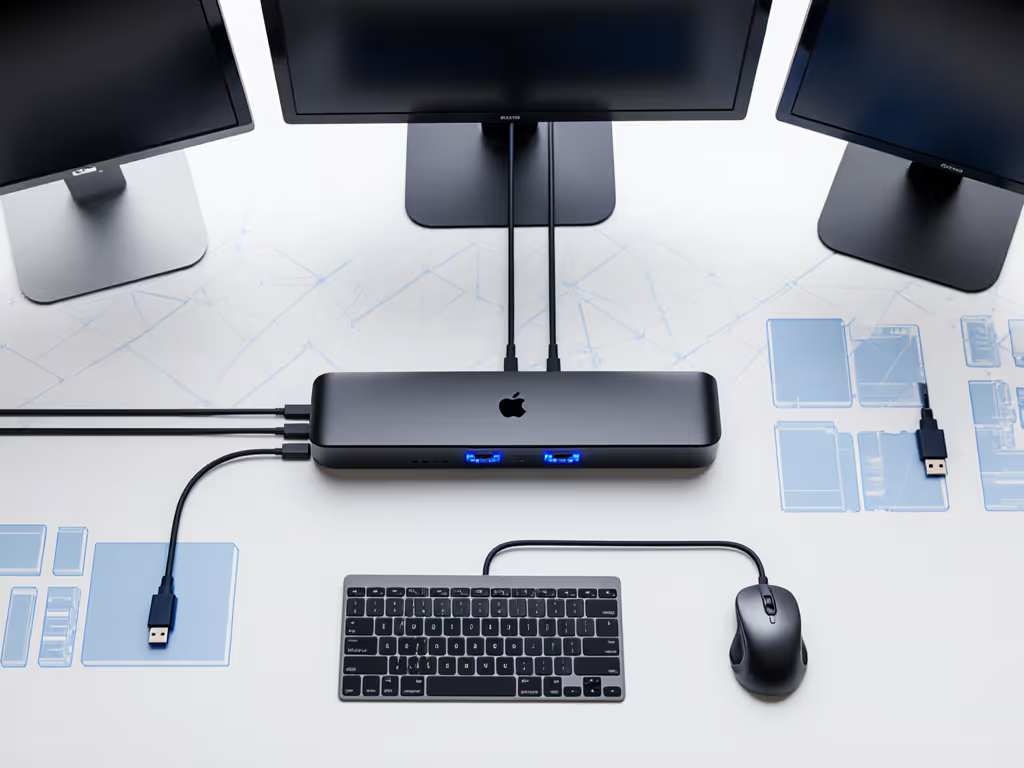
Thunderbolt 5 docks represent a capital investment with a typical depreciation horizon of 4–5 years. Quantify your 5-year costs with our dock TCO calculator. Calculate your total cost of ownership:
Per-user, per-year cost:
- Dock SKU cost: $200 (amortized over 5 years = $40/year)
- Cables and power supply replacement spares: $30/year
- Warranty and extended support: $15/year
- IT labor for deployment, pilot, firmware updates (1.5 hours per user over 5 years): $50/year
- Total annual per-user: ~$135
Compare this to your historical dock refresh and support costs. If you are currently replacing docks every 3 years (due to failure or incompatibility with new OS versions) at a cost of $180 per replacement plus 10 hours of IT labor per incident, your current annual cost is likely $100–150 per user, so a standardized Thunderbolt 5 kit at $135/year is cost-neutral while providing superior connectivity and reliability.
However, if you are currently using a mixed fleet of older Thunderbolt 3 and USB-C docks at an all-in annual cost of $80 per user, a Thunderbolt 5 migration is a net cost increase of $55/user/year. In that case, frame the ROI as:
- Ticket reduction: fewer display/connectivity incidents = fewer help desk calls = $20–30 per user per year in labor savings.
- Faster onboarding: hot-desk setup time reduced from 15 minutes to 3 minutes = $5 per user per transaction.
- Fewer no-fault returns: standardized dock kit improves NPS and reduces warranty burden by 15–20%.
- Supply chain stability: fewer SKUs = fewer supply chain disruptions = lower inventory carrying cost and less obsolescence risk.
Net result: a Thunderbolt 5 standardization program typically pays for itself within 18–24 months in a mid-market fleet (1,000+ machines).
Summary and Final Verdict
Thunderbolt 5 docking for Apple Silicon enterprises is no longer a luxury, it is the operational standard for fleets that demand multi-display reliability, fast data throughput, and minimal support friction. Thunderbolt 5's 80 Gbps bandwidth and dynamic display bandwidth arbitration finally provide the headroom to deliver on the promise of "single-cable docking" without hidden performance compromises.
The deployment playbook:
- Define your display workload profile by user persona (knowledge worker, creator, engineer).
- Mandate OS baselines (macOS Sequoia 15.3+, Windows 11 22H2+) as a prerequisite for Thunderbolt 5 dock support.
- Right-size power delivery: 140W for sustained workloads, 100W only for light-load personas.
- Validate Ethernet MAC passthrough and network stability with your NAC and MDM solutions.
- Test multi-display configurations exhaustively: different display counts, resolutions, and third-party KVM features (e.g., Thunderbolt Share) can interact unpredictably.
- Establish firmware governance: test before production push; treat firmware baselines as operational controls, not optional enhancements.
- Standardize on one or two dock SKUs per persona. Collapse variety; document your known-good configurations.
- Pilot in a controlled cohort spanning laptop models, locations, and use cases. Measure display enumeration, SSD throughput, Ethernet stability, and user satisfaction.
- Govern updates via MDM, WSUS, or vendor automation. Assign clear ownership and SLAs.
- Calculate TCO over a 4–5 year depreciation horizon. Benchmark against your current dock refresh and support burden.
Final Verdict: A standardized Thunderbolt 5 dock kit is justified for mid-market and enterprise fleets (500+ machines) with significant macOS presence or high display/throughput demands. The investment in procurement governance, pilot validation, and firmware management will pay back within 18–24 months in reduced tickets, faster onboarding, and supply chain predictability. For smaller fleets or light-duty use cases, Thunderbolt 4 docks remain a cost-effective alternative; evaluate both options using the TCO framework and pilot results specific to your environment. Choose your dock, lock in your cable spec, enforce your OS baseline, and let the standardization carry the operational load: fewer SKUs, fewer surprises, and a help desk that stops improvising and starts scaling.
Related Articles