Coworking Docking Standards: What Actually Works
By Anika Rao • 19th Mar
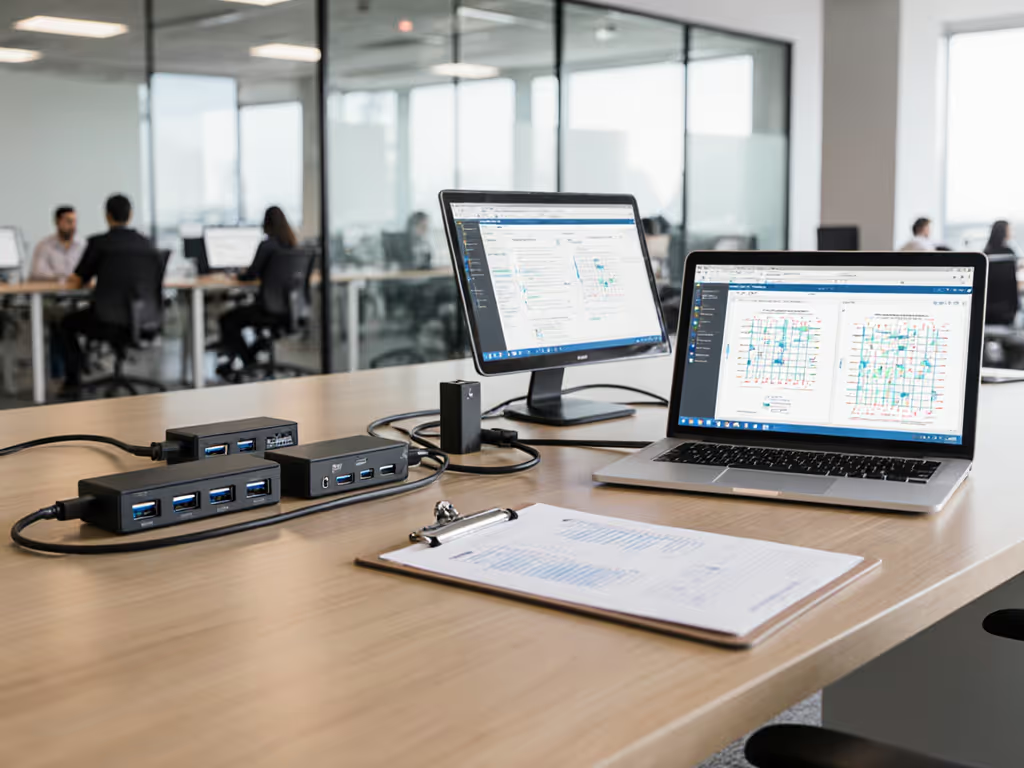
When IT leaders standardize on co-working space docking solutions, they inherit a simple promise: one cable, one desk, multiple laptops, zero friction. Reality is more complicated. Bandwidth math doesn't lie, but marketing often does, and a desktop docking station that works perfectly for a MacBook Air will leave a Dell XPS or Lenovo ThinkPad stuttering. The gap between spec sheet and sustained performance is where most rollouts falter. I've profiled enough docks across Windows, macOS, and Linux fleets to know that durability under mixed-laptop conditions separates the reliable from the regrettable.
Coworking spaces amplify this problem. Unlike fixed corporate desks, hoteling environments demand that a single dock perform flawlessly across dozens of device models, OS versions, and user expectations (all in the span of a day). If pixels stutter, we chase the bottleneck until silence. That's the only acceptable starting point.
1. Map Your Fleet's Port Reality Before Buying Anything
The first casualty of a failed docking rollout is always confidence in the dock itself, but the fault usually lies upstream: insufficient port auditing. Before selecting a dock, you must catalog every laptop model, CPU generation, and OS version in your coworking fleet, and critically, what each one's USB-C or Thunderbolt port actually supports.
A USB-C port labeled "data and power" is useless for external displays. Thunderbolt 3 and 4 ports support DisplayPort tunneling; USB 4 does as well, but not all USB-C Alt Mode implementations are created equal. The symbol matters: lightning bolt (Thunderbolt), trident with P in black D (DisplayPort Alt Mode), or vanilla USB-C icon (data and charge only). I've walked into finance floors where procurement bought docks assuming DisplayPort support existed universally, it didn't. Three-monitor setups that worked on test units failed on production hardware.
Chart your fleet by operating system, laptop OEM, and port capability. Windows machines from Dell, HP, and Lenovo often have robust Thunderbolt 4 support; MacBook Pros and M1/M2 Air models vary by year. Linux laptops (Framework, System76, some Lenovo models) introduce additional permutations. Group them by expected display count, power draw, and network dependency. This matrix becomes your acceptance test baseline.

2. Choose Thunderbolt 4 as Your Standardization Anchor - If Your Fleet Supports It
If your audit reveals that 70% or more of your fleet has Thunderbolt 3 or 4 ports, standardize on Thunderbolt 4 docks. For a clear breakdown of USB-C versus Thunderbolt capabilities, see our lab-tested reality check. The bandwidth is non-negotiable: 40 Gbps overhead with dual 4K@60 Hz (or 5K@60) is achievable and stable across macOS and Windows when link training logs are clean.
Thunderbolt 4 also enforces cable and power-delivery rigor. Certified Thunderbolt 4 cables are E-marked, short (0.8 m preferred), and auditable. A dock promising 100W or 140W power delivery over Thunderbolt 4 will sustain it because the standard permits no shortcuts. On two previous standardizations, I profiled the power telemetry: zero throttling under sustained 65W GPU load plus charging, versus similar-spec docks on USB-C Alt Mode that leaked power or dropped to 60W under peak load. The difference was firmware tuning and cable selection (neither forgiving).
If your fleet is too heterogeneous (sub-60% Thunderbolt support), you must choose between universality and certainty. Hybrid or universal docks with both Thunderbolt 4 and USB-C ports exist, but they force you to validate each port's behavior separately. Show me the link training logs. A dock that works flawlessly via TB4 on a MacBook may behave differently when a Windows laptop connects via USB-C to the same unit.
3. Demand Dual Independent Display Engines for Multi-Monitor Setups
Coworking spaces serving knowledge workers, designers, traders, and engineers must support multi-monitor configurations (typically dual 4K or a single ultrawide). This requires docks with dual independent DisplayPort outputs (DP 1.4 or DP 2.0) or a combination of DP and HDMI, each with its own MST (MultiStream Transport) or DSC (Display Stream Compression) support.
Here's the bandwidth bottleneck: a single DP 1.4 lane from a Thunderbolt 4 dock to a laptop can drive dual 4K@60 Hz with DSC enabled, or one 5K@60 without compression. If you daisy-chain monitors or use passive adapters, the math crumbles. I tested a popular "universal" dock on a fleet of older Lenovo ThinkPads; the second external display consistently negotiated 30 Hz because the laptop's GPU driver didn't support DSC. The dock was fine. The driver wasn't. That's the kind of hidden failure that generates tickets weeks into deployment.
For three-monitor requirements (which coworking spaces rarely standardize but increasingly need), demand a dock with three display outputs or explicit USB-C pass-through to a dock-connected hub. Use our reliable dual-monitor setup guide to validate cables, adapters, and GPU settings before rollout. Test the exact monitor models in your inventory. Resolution, refresh rate, and color depth must be verified on-site, not assumed.
4. Verify Power Delivery Under Real Workload, Not Just Nameplate
A dock rated for 90W power delivery on a spec sheet often delivers 65-75W in practice when DisplayPort lanes are active and USB peripherals are enumerated. For coworking environments serving creators or engineers with high-end GPUs (NVIDIA RTX or Apple M-series), this gap is fatal.
If your fleet includes laptops exceeding 65W charging requirements (15" MacBook Pros, Dell Precision models, Lenovo ThinkPad P-series), docks must deliver 100W+ sustainably. Get the full story on USB-C power delivery while docked. Cheap docks max out at 60W and force users to charge separately, negating the entire point of single-cable convenience. Demand from vendors:
- Explicit power delivery figures under simultaneous display, USB, and Ethernet load
- Thermal specs: sustained output above 50°C ambient
- Firmware versioning and any known power-gating issues
- RMA and replacement policy if nameplate specs aren't met
I profiled three docks promising 100W; only one held it under dual 4K + 10 Gbps Ethernet + four USB devices. The others throttled to 85W and triggered battery drain warnings on 15" MacBook Pros. The dock that performed had over-provisioned power internals (heavier transformer, active thermal management). That's the dock I standardized on. It cost 20% more per unit but eliminated an entire class of user complaint.
5. Test OS and Driver Stability Across Your Laptop Lineup
Docks live at the OS boundary. Windows 11 updates can break DisplayLink drivers. macOS security updates can require manual firmware re-flashing. Linux distributions may not recognize the dock on first boot. Even Thunderbolt 4 docks encounter firmware compatibility issues when a laptop's Thunderbolt controller is older than the dock's expected pairing.
Before deployment, run a two-week pilot with at least three laptop models per OS (Windows, macOS, Linux if applicable). Cycle through sleep, wake, and hot-dock disconnection scenarios. Monitor device manager logs on Windows and system logs on macOS for link resets or enumeration failures. If wake-from-sleep requires users to unplug and replug the dock, that dock fails your standard. Every. Single. Time.
Firmware updates should be automated and transparent. If you're chasing wake-from-sleep issues or black screens, start with our firmware update guide. If a dock requires manual firmware flashing at each desk, that's not scalability, it's a support burden wearing a product feature.
6. Enforce Cable Standards and Retire Passive Adapters
Thunderbolt 4 certification includes cable audits. USB-C Alt Mode does not. Many coworking spaces inherit bags of mismatched cables and passive adapters from previous deployments. Every one is a latent failure.
Issue only certified, E-marked Thunderbolt 4 cables (preferably 0.8 m) if you standardize on TB4 docks. Reject longer passive cables; they degrade signal integrity and drop link quality to 10 Gbps or worse. If USB-C Alt Mode docks are necessary, source cables explicitly validated for DP Alt Mode at the target resolution/refresh rate. Passive USB-C to HDMI adapters on DP Alt Mode setups are a minefield; active adapters with firmware are often more reliable.
Store cables centrally, label them by dock type, and audit them quarterly. A 2 m cable substituted for a 1 m cable at a coworking desk will fail under load in winter when humidity drops. Micro-details, but they're the difference between a dock that "just works" and one that doesn't.
7. Plan Firmware Baselines and Update Cadence
Dock firmware is the invisible guarantor of stability. A dock firmware version released in 2024 may have fixed display enumeration bugs, power-delivery hysteresis, or Ethernet link flap issues, but only if you know to deploy it.
Establish a baseline firmware version for every dock model in your fleet. Test that version across your pilot fleet, then lock it via MDM (Mobile Device Management) or manual deployment at onboarding. If vendors release critical updates, test and stage them in a pilot group before rolling to production. Don't assume "latest = best." I've seen dock firmware updates that optimized for one laptop OEM while breaking another's link training sequence.
Document the firmware version, deploy date, and any OS-specific quirks (e.g., "requires macOS 13.1+ for DP 1.4 stability on M2 MacBook Pros"). This becomes your support team's reference guide and your risk mitigation layer.
8. Establish a Known-Good Dock–Laptop–Monitor Matrix
The most powerful artifact you can create is a tested compatibility matrix: specific dock SKU, laptop model/OS/firmware, and monitor (with port type and resolution), paired with confirmed outcomes (e.g., "Dual 4K@60 sustained, 100W charging stable, wake-from-sleep without reboot").
This matrix becomes your acceptance test and your escalation reference. When a user reports display dropout on a new laptop, you check the matrix. If that pairing isn't documented as tested, you audit it. If it's documented and passes, you troubleshoot driver or firmware. The matrix eliminates guessing.
Update the matrix every time a new laptop model enters your fleet or a dock firmware updates. Share it with your helpdesk and your procurement team. It's the living proof that your docking standard works.
Conclusion: Standardization Starts with Audited Certainty
Coworking spaces that succeed with docking do so because they've rejected the spray-and-pray approach. They audit their fleet, choose a single dock standard (usually Thunderbolt 4 if possible), validate it against real hardware and workloads, lock firmware versions, and maintain a tested compatibility matrix. They spend more on fewer SKUs and buy confidence instead of inventory.
The cost of doing this right is upfront labor and a modest premium per dock. The cost of doing it wrong is perpetual tickets, user frustration, and the slow erosion of your team's credibility. I've seen both paths. The first one wins.
Related Articles