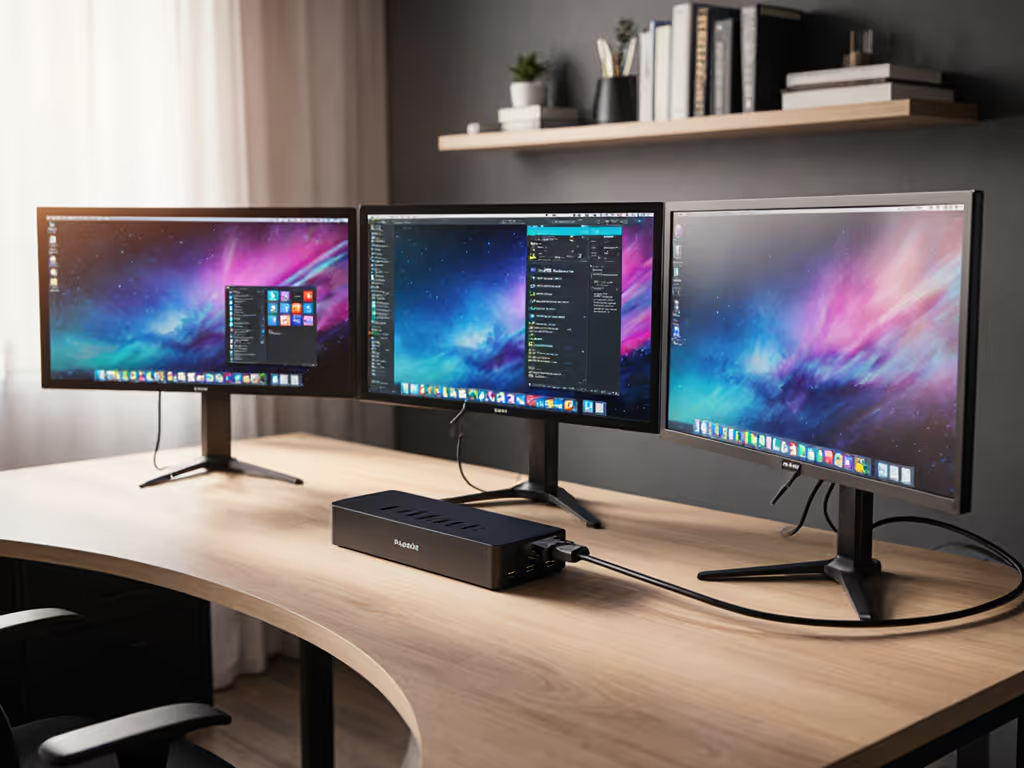
Dell TB25 Ultra Speed: Certified Enterprise Clarity
By Lucia Moretti • 28th Apr
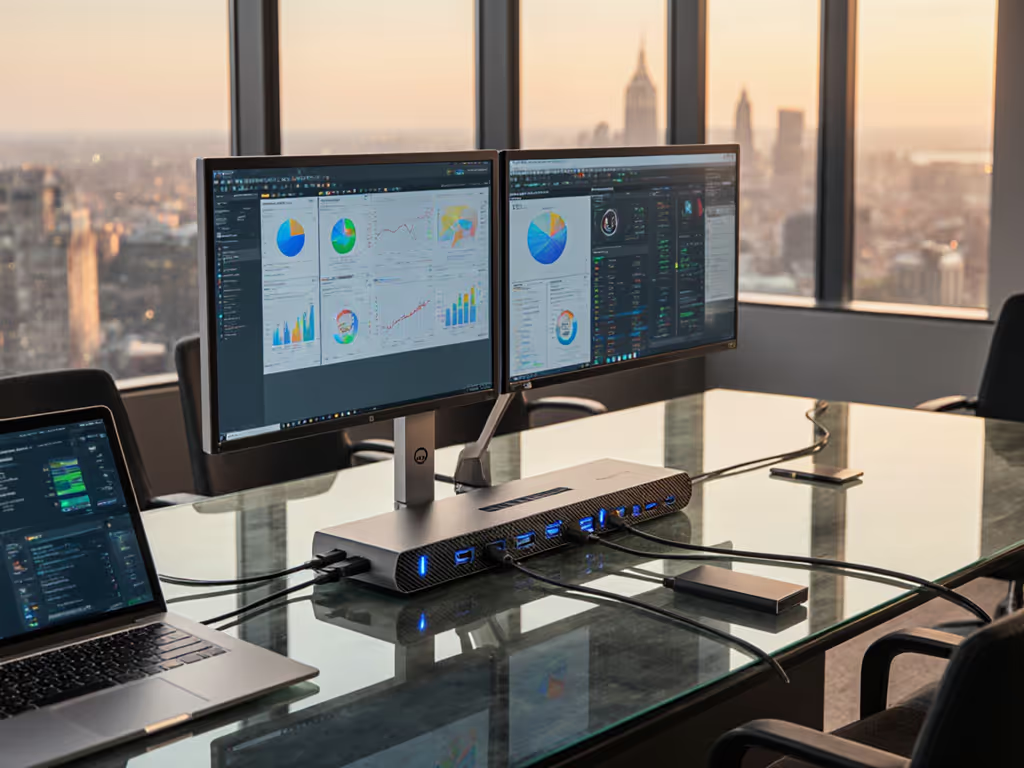
When your organization standardizes on the right Thunderbolt 5 docking station, something unexpected happens: your IT team stops hearing from users about dock problems. That silence isn't boring... it is the sound of a system working exactly as promised. For enterprise IT leaders managing hybrid workforces across North America, Europe, and APAC, choosing between Dell Pro Thunderbolt 4 Smart Dock SD25TB4 and its Thunderbolt 5 successor isn't just a hardware decision; it's a commitment to operational clarity and measurable desk-side reliability. This guide walks through both platforms, comparing what works in the real world so you can build the standardized kit your fleet deserves.
Why Enterprise-Grade Docks Matter More Than You Think
Small setup details prevent the big support calls. This truth compounds across a 500-seat deployment. A dock that reliably delivers power, drives four monitors at the right resolution, and doesn't require users to hunt for cables doesn't just save your support team time; it removes friction from the moment someone sits down, whether they're returning to an office desk or rotating through a hot-desk pool. The stakes are higher now: your workforce expects a seamless plug-and-work experience, and IT credibility depends on delivering it consistently.
Thunderbolt-based docks represent the current pinnacle of single-cable enterprise docking. Both the Dell Pro Thunderbolt 4 Smart Dock SD25TB4 and the newer Thunderbolt 5 Smart Dock (SD25TB5) offer enterprise-grade management features, multiple display support, and power delivery sufficient for high-performance workstations. The question isn't whether Thunderbolt is worth it (it is), but which generation best fits your fleet, timeline, and budget. If you need a refresher on the difference between USB-C and Thunderbolt for docks, see our Thunderbolt vs USB-C guide.
The Numbered Comparison: Five Keys to the Right Choice
1. Power Delivery: What Your Workstations Actually Need
The Dell Pro Thunderbolt 4 Smart Dock SD25TB4 delivers up to 130 watts to Dell commercial laptops and 96 watts to non-Dell systems.[1] For most business-class ultrabooks and even entry-level mobile workstations, this is sufficient. Machines pulling 65 to 90 watts under load will charge reliably while users work.
The Dell Pro Thunderbolt 5 Smart Dock (SD25TB5) raises the bar dramatically: up to 300 watts for Dell commercial laptops with USB-C PD 3.1 support, and a still-impressive 240 watts for non-Dell systems.[2] This matters if your workforce includes CAD professionals, video editors, data scientists, or anyone running GPU-accelerated applications on a ThinkPad X1 Extreme or equivalent. At 240 watts for non-Dell rigs, even the most demanding mobile workstations stay charged during actual work, not just at rest.
Make the default the easy path: standardize on power delivery sufficient for your most demanding use case, and watch baseline ticket volume drop.
If your fleet is primarily mainstream business laptops (60 to 80 watts draw), the SD25TB4 is defensible. For a deeper breakdown of power delivery wattage requirements across laptop brands, consult our PD explainer. If you have pockets of power-hungry machines or want to future-proof, the SD25TB5 is the clear choice (and worth the premium).
2. Display Scaling: Matching Real Monitor Deployments
The SD25TB4 supports dual displays reliably. You get DisplayPort 1.4 and HDMI options, capable of driving dual 4K displays at 60 Hz, or QHD at higher refresh rates.[5] For typical office scenarios (a laptop plus one or two external monitors), this is proven, stable, and trouble-free.
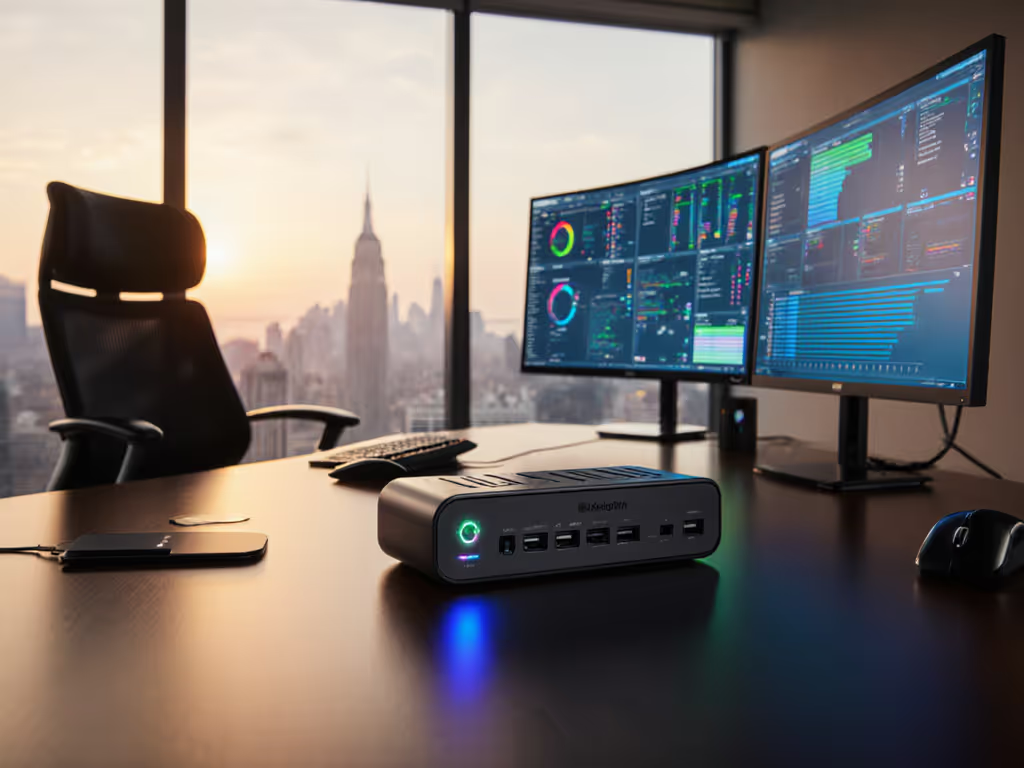
The SD25TB5 moves to a different tier entirely. It supports up to four 4K displays at 120 Hz, two 6K displays at 60 Hz, or a single 8K display at 60 Hz.[2] In practical terms, that means a researcher can attach a primary 4K monitor, a secondary high-res display for code or data, and still have video headroom for conference room adoption. The HDMI 2.1 and dual DisplayPort 2.1 connectors mean you're not forced into adapters; native video outputs reduce failure points and keep setup predictable.
For hot-desk scenarios where different users rotate through the same dock, simpler is often better. The SD25TB4's dual-display constraint mirrors real user needs: laptop display plus one or two externals covers 85% of knowledge work. The SD25TB5 shines in dedicated creative suites, trading floors, or video conferencing hubs where display density justifies the investment. For step-by-step multi-monitor configuration across Windows and macOS, use our dual and triple monitor setup guide.
3. Enterprise Management and Firmware Stability
Both docks include IT-grade management features. The SD25TB4 supports remote firmware updates, PXE boot, wake-on-LAN, MAC address pass-through, and Intel AMT for vPro-equipped systems.[1] These aren't nice-to-haves; they're foundational for fleet-scale deployments. MAC address pass-through alone prevents the compliance nightmare of users appearing with random MAC addresses on your network.
The SD25TB5 carries the same management arsenal and extends it with kernel DMA protection and compatibility across Windows 11, Windows 10, macOS, ChromeOS, Ubuntu, and RHEL.[2] If you're assessing hardening needs, our dock security features explained checklist covers DMA protection, port control, and network isolation. For heterogeneous fleets (common in APAC especially, where macOS and Linux pockets coexist with a Windows majority), this breadth is a hidden advantage. A single standardized dock that works predictably across five operating systems cuts your SKU inventory and training overhead dramatically.
4. Cabling Strategy: Single Cable Versus Flexibility
The SD25TB4 typically offers USB4/Thunderbolt 4 connectivity with options for external cables, giving your team flexibility in desk mounting and arrangement. For hot-desk deployments where you're hiding docks behind monitors or mounting them on arms, this modularity can be operationally useful.
The SD25TB5 ships with a proprietary attached host cable, a choice that initially feels restrictive but carries a crucial reason: delivering 300 watts of power over a single connection requires a specialized, tested, Dell-certified cable.[2] This isn't vendor lock-in theater; it's safety and reliability. The tradeoff is worthwhile. Users plug one cable; everything powers, connects, and streams. No hunt for the "correct" USB-C cable, no testing whether this particular 3-meter Thunderbolt 5 rated cable actually works. Make the default the easy path.

5. VESA Mounting and Physical Integration
Both docks support VESA 100mm × 100mm mounting brackets, allowing you to nest the dock behind a monitor or on an articulating arm. This is where Lucia's philosophy intersects with real workspace design: a dock mounted out of sight is a dock that doesn't collect clutter or encourage users to unplug it mid-day.
The SD25TB4 includes this option; the SD25TB5 explicitly pre-drills the holes and documents the integration, making it the clearer choice for standardized hot-desk kit buildouts.[2] If you're designing a repeatable "hoteling bundle" for your organization (dock, cables, mounting, and a one-page setup card), the SD25TB5's explicit mechanical design saves your team guesswork.
Building Your Standardized Dock Strategy
The best dock for your organization is the one that becomes invisible once deployed. Here's how to choose:
Choose the SD25TB4 if:
- Your fleet is primarily Dell commercial laptops with baseline power needs (under 100W)
- You're managing 500+ seats and need aggressive cost control
- Dual-display scenarios cover 95% of your use cases
- You want proven, mature Thunderbolt 4 technology with no supply risk
Choose the SD25TB5 if:
- Your organization includes mobile workstations, creators, or high-power users
- You manage heterogeneous fleets (Windows, Mac, Linux, ChromeOS mixed)
- You plan to deploy docks to hot-desk spaces where flexibility and speed matter
- You want the longest possible hardware lifecycle and OS compatibility
- Your users rotate frequently; reduction in setup friction directly improves experience
The Clarity Play: Reducing Tickets Before They Happen
Hot-desking was chaos until we standardized. VESA-mounted docks behind monitors, right-length cables, color-coded port labels, and a one-page 'Plug Here' card. We left Ethernet always connected, routed power neatly, and removed spare adapters. New hires plugged once, displays lit correctly, and no one hunted for dongles.
That lesson scales. When you standardize dock SKU, cable spec, firmware baseline, and mounting, you're not just buying hardware (you're building institutional knowledge). Your Level 1 support can say, "Plug into the dock, wait ten seconds, your displays will appear." No asterisks, no "sometimes." Just work.
For IT leaders responsible for end-user computing across thousands of seats, a single-cable Thunderbolt dock (combined with standardized cables, documented OS settings, and a repeatable physical kit) becomes your competitive advantage. Users perceive speed and reliability. IT perceives lower ticket volume, faster onboarding, and the credibility that comes from making complexity invisible.
Looking Ahead: Network, Firmware, and Lifecycle Certainty
Both docks include 2.5Gb Ethernet ports, a feature often overlooked but operationally critical for hot-desk environments where WiFi is congested.[2][5] That one-second Ethernet link-up prevents the three-minute WiFi negotiation that kills first-impression user experience.
Firmware stability matters too. Follow our firmware update playbook to prevent black screens after sleep and maintain cross-OS stability. Enterprise docks require regular updates to address Windows feature releases, macOS security requirements, and Linux driver expectations. The SD25TB5's broad OS compatibility means your firmware investment pays dividends across your entire fleet, not just Dell-centric cohorts. Plan for quarterly firmware reviews and a playbook for rolling updates without desk-side touch.
Next Steps: From Spec to Reality
Now is the moment to move from comparison to action. Here are three immediate steps:
1. Audit your fleet's power and display needs. Pull a cross-section of 50–100 laptops (Dell, HP, Lenovo, Apple, others). Measure actual power draw under load and note monitor counts/resolutions per role. This ground-truth data outweighs any marketing claim and clarifies whether you need the SD25TB4 or the SD25TB5.
2. Test both docks in your environment. Request evaluation units. Have your support team plug them into the most common laptop models in your fleet (across Windows and macOS if applicable) and confirm display enumeration, power stability, and Ethernet reliability. Document any quirks or driver needs per OS. This real-world testing cuts deployment risk by 80%.
3. Design your standardized kit. Once you've chosen a dock, specify the complete bundle: dock model, host cable (if applicable), monitor connection cables (length, connector type, E-marked rating), Ethernet cable, power supply if external, VESA mount, and the one-page setup card your new hires will see. Photograph the correct setup and include it in your onboarding. Make the default the easy path.
The organizations that win on hoteling and hybrid work aren't the ones with the fanciest tech; they're the ones where setup is so transparent that users never wonder whether they're doing it right. By choosing a Thunderbolt-based dock (and committing to the standardization around it), you're signaling that your IT team has figured this out. Your users will notice. Your support team will feel it in their inbox. And your leadership will see it in the metrics: faster onboarding, fewer escalations, and the credibility that comes from making the complex invisible.
Related Articles