Automotive Engineering Docks: Setup Guide
By Jae Kim • 8th Apr
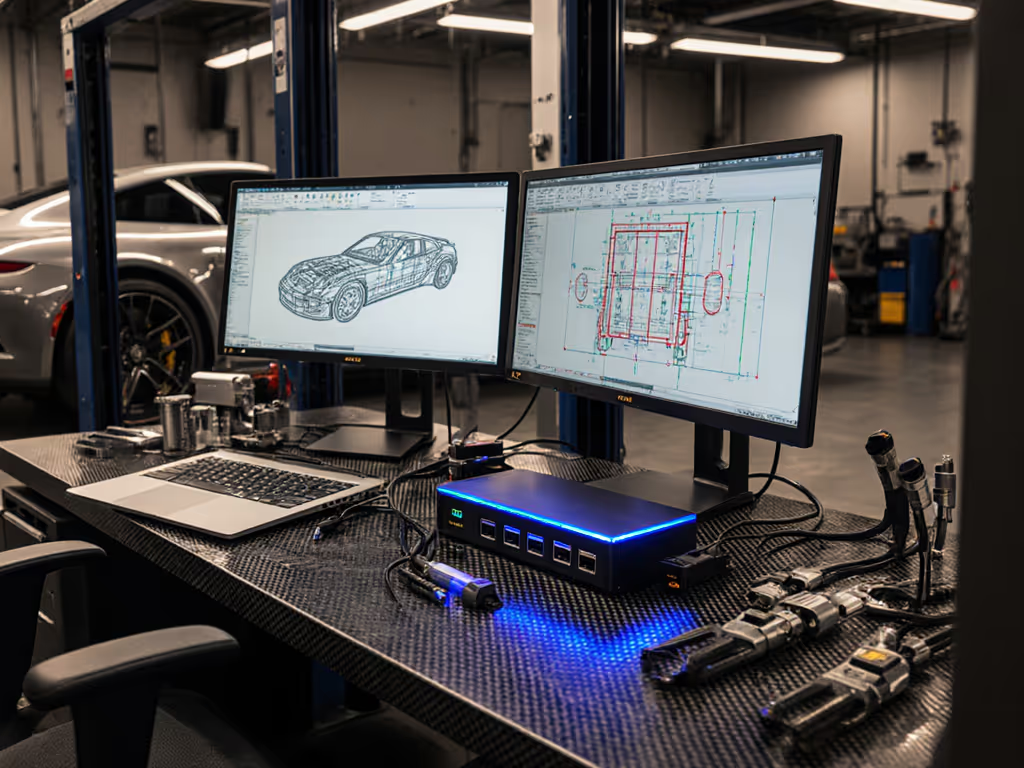
Automotive engineering docking solutions demand more than standard conferencing desk arrangements. When your CAD workstations, vehicle simulation environments, and diagnostic tools live in mobile laptops, the desktop docking station becomes infrastructure, and poor choices cascade into throttled processors, disconnected displays, and dropped network sweeps that crater productivity.
I've spent years chasing phantom disconnects, margin-thin power budgets, and firmware quirks that only surface under real load. What I've learned is unforgiving: symptoms lie; logs don't. This guide walks you through the deliberate, testable path to a dock setup that survives your engineering workflow without cutting corners on performance or reliability.
Understanding Your Automotive Engineering Power and Connectivity Requirements
Automotive design work isn't light browsing. Get the wattage right with our power delivery guide. CAD rendering, finite-element analysis (FEA), and vehicle simulation tools routinely push laptop processors into sustained load. A typical automotive engineer running CATIA, ANSYS, or Simulink benchmarks needs:
- Power delivery: 100-130W sustained (not peaks), because your mobile workstation loses voltage under GPU-heavy FEA and thermal throttles at 95°C.
- Display headroom: dual 4K@60Hz or a single 5K/6K monitor for intricate assembly drawings, often combined with a secondary diagnostic panel.
- Network determinism: wired Gigabit Ethernet with stable link negotiation, because wireless latency spikes corrupt real-time vehicle simulation data streams.
- USB bandwidth: multiple high-speed channels for diagnostic interfaces, video capture (in-vehicle testing footage), and mass storage for CAD version control.
I once watched a sales VP's monitor blank intermittently in a demo. The root cause wasn't exotic, it was a marginal HDMI cable paired with a dock firmware quirk negotiating Fast Link Training on an older monitor. Forcing DisplayPort 1.4, swapping to a certified cable, and updating dock firmware ended the ghosting. The lesson: reproduce, isolate, and only then recommend the antidote. Guessing wastes weeks.
Step 1: Audit Your Laptop's Docking Capabilities
Before you buy, extract the exact specs from your engineering fleet. This is non-negotiable.
Check your connector type and power ceiling:
Open Device Manager (Windows) or System Report (macOS) and log the USB-C version, Thunderbolt tier (TB3, TB4), and maximum Power Delivery (PD) rating. Example: a 2023 Dell Precision 5570 ships with Thunderbolt 4 and 140W PD; a 2021 MacBook Pro M1 Max maxes at 96W via USB-C. The dock cannot exceed what your laptop's port negotiates.
Test display negotiation:
Connect a test USB-C dock with known firmware (firmware version logged) to your target laptop. Open display settings and inspect: Does your CAD monitor enumerate at native resolution and refresh? Is the secondary display enumerated or ghosted? On macOS, external display limits below Monterey often throttle to a single 4K; on Windows, DisplayLink drivers and Alt Mode compete for bandwidth. For Apple Silicon specifics, see our Apple dual monitor dock guide.
Log network and storage performance:
Plug in your dock and run iperf (Linux/macOS) or NetIO (Windows) to measure Ethernet throughput. Automotive diagnostic data often involves multi-gigabyte CAD files and vehicle telemetry logs. If the dock's Gigabit Ethernet idles at 100Mbps on link negotiation, you've found the first failure mode.
Step 2: Select Dock Architecture Aligned to Your Workload
Three architectures dominate automotive engineering: If you're choosing between standards, our USB-C vs Thunderbolt explainer clarifies speed, display paths, and compatibility trade-offs.
Thunderbolt 4 Alt Mode docks (60-100W+)
These use native DisplayPort and USB 3.1 over the TB4 pipe. Strengths: native Mac and Windows support, no driver overhead, predictable firmware behavior. Weakness: limited to two 4K@60Hz displays or one 6K (5K on M1/M2 macOS). Best for: mobile CAD work, dual-monitor setups, light simulation offload.
USB-C Alt Mode with DisplayLink hybrid (65-90W)
DisplayLink software-encodes video over USB 3, freeing bandwidth for data. Strengths: three-plus display support, cost-efficient scaling. Weaknesses: 5-10% CPU load during video encoding (critical under FEA load), firmware and driver fragility across Windows updates, macOS kernel extension blocking on Big Sur+. Incident rate: high, root-cause lag weeks.
Dedicated Ethernet + separate USB hub + dumb dock (modular)
For mission-critical automotive labs: daisy-chain a TB4 dock (display + 40W power) with an external Gigabit Ethernet dongle and separate USB 3 hub. Strengths: isolate variables, swap one component without fleet-wide redeployment. Weakness: cable tangle, higher per-unit cost.
Reproduce, isolate, and only then recommend the antidote.
For mixed fleets spanning Windows workstations and MacBook Pros, I've had the most reliable results with TB4 Alt Mode (no DisplayLink). Yes, you're limited to two 4K displays, but automotive design has moved away from ultrawide trends, single 27-32" 4K monitors paired with a laptop display are the mode. Anything else introduces DisplayLink, and DisplayLink introduces variance.
Step 3: Cable and Power Delivery Verification
Cables aren't passive. A marginal USB-C cable causes voltage sag under load, triggering power negotiation failure and display dropout.
Enforce E-Mark compliance:
When purchasing dock cables, verify E-Mark certification on the connector. This ensures the cable reports its current rating to your laptop and dock. Non-E-marked cables allow undeclared power draw; your laptop sees 15W available and throttles the dock to 15W, starving your FEA solver.
Measure voltage drop under CAD load:
Use a USB Power Meter inline between dock and laptop. Run a CAD rendering (high GPU load) and log the voltage at the dock connector. Voltage should hold ≥19V for 100W+ PD. If it sags to 18.5V, the cable is losing 2%+ and triggering re-negotiation (logs will show repeated plug-unplug events).
Test display cables independently:
If your dock uses DisplayPort passive cables, apply them separately to each monitor before final integration. A cable optimized for 30Hz may degrade a 4K@60Hz signal to 30Hz when thermally stressed. Symptoms: stuttering CAD pans, audio dropout on HDMI audio return channel, video loss on wake from sleep.
I recommend certified, dock-bundled cables first. After that, source replacements from the dock OEM or tier-1 suppliers (not Amazon marketplace generics). Cost premium: 20-30%, but TCO collapses when you avoid one dock RMA.
Step 4: Display and Resolution Negotiation Testing
Automotive CAD demands pixel fidelity. Your setup will fail silently if displays don't negotiate. Follow our dual/triple monitor setup guide to lock in reliable 4K timings on Windows and macOS.
Establish a test matrix for each laptop + dock + monitor combo:
For each engineering role (CAD designer, simulation engineer, diagnostics tech), capture:
- Laptop model, CPU, GPU, macOS/Windows version
- Dock model and firmware version (update before testing)
- Monitor native resolution, EDID firmware version
- Actual achieved resolution, refresh, color gamut, and power consumption (from display OSD)
- Docking time (seconds from plug-in to full display paint)
Example entry (real-world):
Dell Precision 5570 (RTX A2000M, Win 11 22H2) + TB4 Dock Firmware 2.14 + Dell U2724DE (4K@60Hz) + LG UltraWide (5120×1440): achieves native on both, 8.2 sec docking, stable EDID on resume.
Test macOS display stacking:
Mac M1/M2 chips limit native external display to one at full fidelity; a second display may throttle to 1080p or 30Hz unless you force Alt Mode negotiation. Reproduce by:
- Connect two 4K monitors via TB4 dock.
- Open System Report > Displays and log pixel clock and refresh for each.
- Run Geekbench 5 OpenGL and check for frame drops or thermal throttling.
If the second monitor reverts to 30Hz under load, you've hit a negotiation boundary. Mitigation: use a single 6K monitor or accept the secondary as a data panel (1080p), not a design canvas.
Step 5: Network Stability and Firmware Baseline
Automotive simulation often streams vehicle telemetry or accesses shared CAD repositories. Network dropout isn't acceptable.
Disable energy-saving modes on Ethernet:
On Windows, open Device Manager > Network Adapters, right-click the dock's Ethernet adapter, Properties > Power Management, and uncheck "Allow the computer to turn off this device to save power." Link negotiation timeouts from sleep states cause spurious disconnects. If wake-from-sleep black screens persist, use our dock firmware update guide to stabilize resume behavior. Automotive teams running continuous data feeds (ECU logging, CAN bus bridge) cannot tolerate link flaps.
Pin dock firmware and document it:
Create a log:
Dock Model: [SKU]
Firmware Version: [X.YZ, e.g., 2.14]
Release Date: [YYYY-MM-DD]
Known Issues: [DisplayLink lag on Win 11 22H2, Ethernet renegotiation on wake]
Approved Laptops: [Dell Precision 5570, Lenovo ThinkPad P16s, MacBook Pro 16]
Related Articles