Student Docking Stations Compared: Portable & Durable Campus Picks
By Chen Wei • 5th Nov
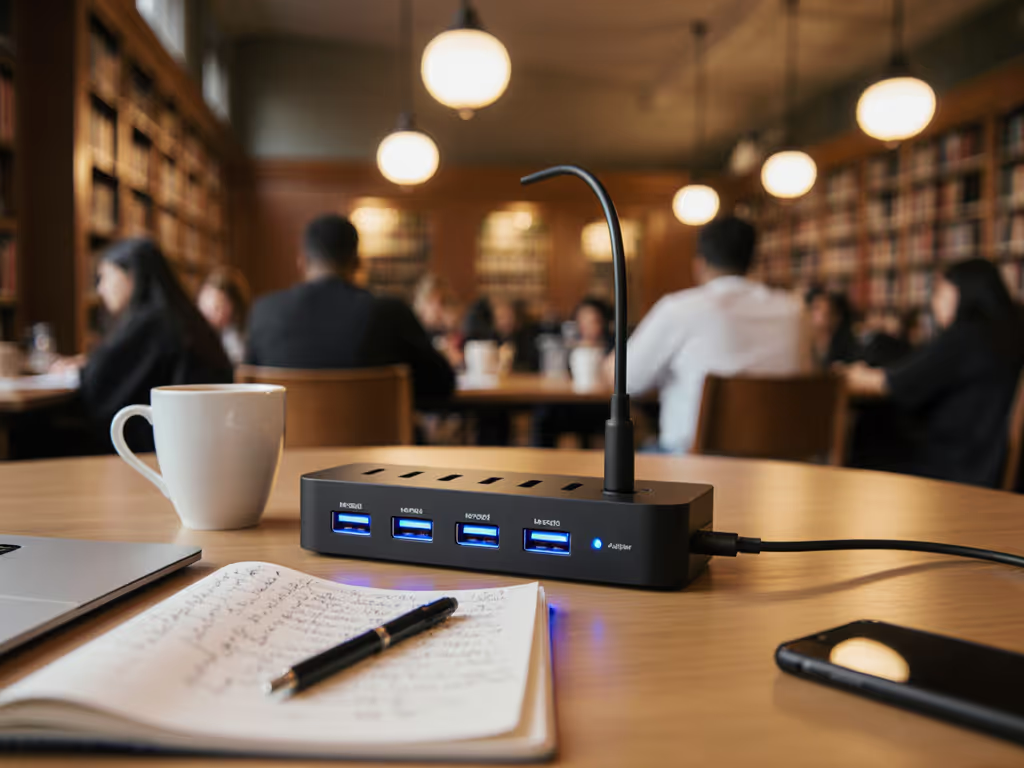
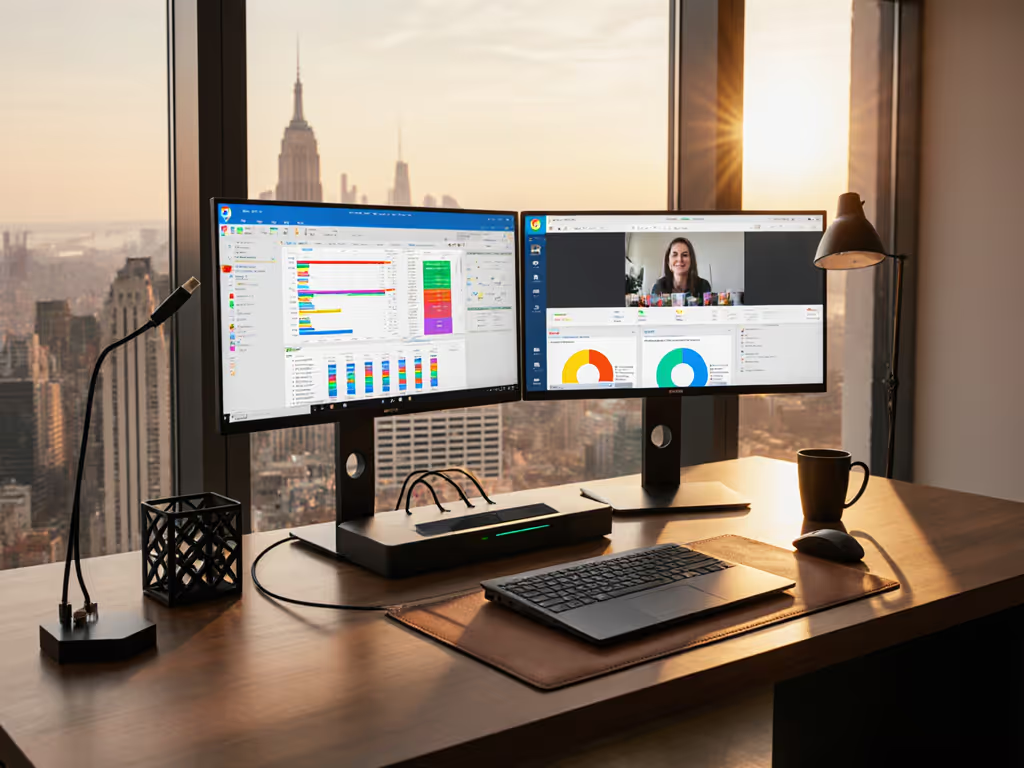
When students need to transform their laptop computer docking station into a full workstation between classes, the right desktop docking station setup can make or break their academic success. I've seen it firsthand: a nonprofit mixing hand-me-down laptops and monitors across campus locations where staff wasted hours figuring out why displays wouldn't work or power delivery failed. Translate specs into steps, and steps into consistent outcomes (this principle became my north star).
In this guide, you'll get exact specifications, port mappings, and OS-specific settings that guarantee reliable performance for student workspaces. New to docks? Start with our docking station basics. Forget marketing fluff; we're building durable campus docking solutions that survive dorm moves, coffee spills, and rushed library sessions. Let's build your known good pairing.
Step 1: Define Your Student Workspace Scenario
Before spending a dime, clarify your actual usage pattern. Students have three distinct workstation needs:
Library & Study Spaces (Portable Priority)
- Need: Single-cable simplicity for quick desk turnover
- Must-have: <8oz weight, integrated cable, no external power brick
- Ideal monitors: Single 1080p or 1440p notebook display
- Power requirement: 65W+ pass-through (covers most student laptops)
Dorm Room Setup (Performance + Space)
- Need: Dual monitors, peripherals, and charging
- Must-have: Multiple USB ports, Ethernet, HDMI + DP output
- Ideal monitors: Dual 1080p or single 4K for design work
- Power requirement: 90W+ for gaming laptops and creative workstations
Group Project Zones (Shared & Secure)
- Need: Hot-desking compatibility across various student devices
- Must-have: Thunderbolt 4/USB4 standardization (not proprietary docks)
- Critical: Kensington lock slot for borrowed equipment
- Power requirement: 100W+ for universal compatibility
Exact SKUs or it didn't happen (your checklist needs to match the physical product in hand).
That campus IT department I helped created a color-coded grid showing exactly which Chromebook worked with which dock, port, and cable for triple 1080p output. For campus rollouts and lab carts, see our classroom docking setup guide. No guessing. No wasted training time.
Step 2: Decode Spec Sheets for Real Student Use
Marketing terms like "supports 4K" hide critical limitations. Here's what actually matters:
What Student Specs Don't Tell You
| Feature | Marketing Claim | Student Reality |
|---|---|---|
| Power Delivery | "100W charging" | Actual deliverable power is typically 85W after dock draw (15W used internally) |
| Video Output | "Dual 4K display" | Requires Thunderbolt 4+ or DisplayLink chip (not in budget docks) |
| USB Speed | "10Gbps ports" | Only one port may deliver full speed; others may be USB 2.0 |
| Compatibility | "Works with Mac/Windows" | M1/M2 Macs limited to one external display on most hubs |
Critical Student-Specific Questions
- Does the dock work with Chromebook's USB-C implementation? (Many lack Alt Mode)
- Will it survive being stuffed in a backpack daily? (Check aluminum casing vs plastic)
- Can it handle being plugged/unplugged 5+ times daily without port damage?
- Is the cable integrated or replaceable? (Integrated = fewer lost parts)
Step 3: Select Cables for Campus Durability
Most student docking failures trace back to cables, not the dock itself. Campus environments demand specific cable considerations:
The Cable Checklist
- Length: 12-18" for dorm setups (reduces tripping hazards), 24"+ for library use
- Construction: Braided nylon exterior (resists fraying from backpacks)
- Certification: Must show "E-marked" for >60W delivery (cheap cables max at 18W)
- Port type: USB-C to USB-C with 24-pin connector (not 16-pin) To avoid undercharging and random disconnects, follow our power delivery guide.
Common Student Mistakes
- Using iPhone charger cables (lacks E-marker chip for power negotiation)
- Selecting 3ft+ cables for dorm setups (creates cable clutter)
- Ignoring USB-C port orientation (repeated upside-down insertion damages ports)

SABRENT USB-C Hub 5-in-1
Compact 5-in-1 USB-C hub for essential display and peripheral expansion.
$9.99
HDMI Output4K@60Hz (DP Alt Mode)
HDMI Output4K@60Hz (DP Alt Mode)
Pros
Reliable, plug-and-play expansion for USB-C devices.
Delivers 4K@60Hz HDMI video & 100W power passthrough.
Cons
Not all USB-C devices support video/charging; check compatibility.
Very short integrated cord can be limiting.
Customers find the USB hub reliable and well-made, appreciating its multiple ports and ability to turn them on and off individually. They consider it good value for money and easy to use, describing it as plug-and-play. Compatibility receives mixed feedback - while it works well with MacBooks and various devices, some customers report issues with external HDDs. The cord length receives criticism for being very short.
Customers find the USB hub reliable and well-made, appreciating its multiple ports and ability to turn them on and off individually. They consider it good value for money and easy to use, describing it as plug-and-play. Compatibility receives mixed feedback - while it works well with MacBooks and various devices, some customers report issues with external HDDs. The cord length receives criticism for being very short.
Step 4: Configure OS Settings for Reliable Performance
Student laptops run mixed operating systems, and here are proven configurations:
Windows 10/11 Essentials
- Device Manager > USB controllers: Disable selective suspend for all root hubs
- Power Options: Set minimum processor state to 5% when plugged in (prevents USB disconnects during light work)
- Display Settings: Disable HDR when using HDMI monitors (triggers 30Hz caps on many docks)
macOS Specifics
- System Settings > Displays: Check "Show mirroring options in the menu bar" for quick output switching
- Security & Privacy: Authorize USB accessories immediately after dock connection (prevents black screens)
- Critical: M1/M2 Macs only support one external display through most hubs; Thunderbolt 4 docks are required for dual displays Get verified options in our Apple dual-monitor dock picks.
ChromeOS Considerations
- Settings > Displays: Enable "Use as separate display" (default is mirroring)
- Important: Most Chromebooks require USB-PD 65W+ docks; lower power causes battery drain under load
- Troubleshooting: Press Search + Refresh to reset display configuration when displays go black

UGREEN Revodok Pro USB-C Hub 6 in 1
Reliable 6-in-1 USB-C hub for flawless display, data, and power.
$13.98
Video Output4K 60Hz HDMI
Video Output4K 60Hz HDMI
Pros
Simultaneously handles data (10Gbps), video, and 100W power.
Eliminates display issues for smooth presentations and gaming.
Cons
Potential slowdowns reported when plugging in the device.
Specific USB-C port is data-only (no video/charging).
Customers find the docking station works flawlessly and appreciate its high-quality build that's sturdy enough not to move around. The device offers excellent connectivity with multiple devices and provides two USB type A ports, with one customer noting it's a relatively inexpensive way to use two external monitors. While some customers report no delays or latency with any apps, others mention the device slows down when plugging it in.
Customers find the docking station works flawlessly and appreciate its high-quality build that's sturdy enough not to move around. The device offers excellent connectivity with multiple devices and provides two USB type A ports, with one customer noting it's a relatively inexpensive way to use two external monitors. While some customers report no delays or latency with any apps, others mention the device slows down when plugging it in.
Step 5: Verify & Test Your Dorm Room Docking Setup
Don't trust it until you've tested it. Here's my student-proven validation protocol:
The 5-Minute Reliability Test
- Power test: Run a CPU-intensive task (like video rendering) while monitoring battery percentage for 5 minutes. It shouldn't drop below 95%.
- Display stress: Switch between mirror/extend modes 5 times. It should reconnect within 3 seconds each time.
- Peripheral test: Plug/unplug USB devices 3 times during active use. Keyboard/mouse shouldn't disconnect.
- Sleep/wake test: Close laptop lid for 60 seconds, then reopen. Displays should restore within 10 seconds.
- Cable stress: Gently wiggle the cable at both ends. No flickering or disconnects should occur.
Failure Points & Fixes
- Problem: Black screen after sleep
Solution: On Windows, disable "Allow computer to turn off this device" in USB controller properties - Problem: Intermittent USB disconnects
Solution: Replace with an E-marked cable; many student docks draw >3A and require special cabling - Problem: Slow file transfers to external drive
Solution: Plug the drive directly into a blue USB 3.0+ port (not black USB 2.0 ports)
Dorm Room Setup Pro Tips
- Monitor placement: Position the primary monitor at eye level using textbooks as risers (reduces neck strain during all-nighters)
- Cable management: Use binder clips to secure cables to the desk edge (prevents tripping hazards)
- Theft prevention: Loop a Kensington lock through the dock while connected to the laptop (most student docks include a lock slot)
Beyond the Basics: Future-Proofing Your Student Setup
Your needs will evolve as you progress through your degree. Here's how to build a portable student workstation that grows with you:
Scalability Checklist
- Year 1: Basic USB-C hub for library use (single monitor, essential ports)
- Year 2: Mid-tier dock with dual monitor support for research papers
- Year 3+: Thunderbolt 4 dock for dual 4K displays (engineering/design majors) Before you buy, compare Thunderbolt 4 vs USB4 limitations to make sure you're future-proofed.
The TCO Reality Check
Many students buy cheap docks multiple times due to failures. Investing $35-$50 in a known-good pairing actually saves money:
- $15 dock × 3 replacements = $45 (plus 6+ hours troubleshooting)
- $45 quality dock = One-time purchase with reliable performance
Final Recommendations for Campus Success
For most students, the SABRENT HB-TC5P provides the best balance of portability, durability, and essential ports at a student-friendly price. If you need multiple high-speed data ports for engineering or design work, the UGREEN Revodok Pro delivers superior throughput with its 10Gbps USB-C connections.
Remember the core principle: documentation beats intuition. The campus IT team I worked with stopped wasting hours on docking issues once they implemented a simple one-page reference showing exactly which dock worked with which laptop model for specific display configurations. Their new staff followed steps, not guesses, and day-one setups finally stopped derailing training sessions.
Your next step is to map your specific laptop model to verified docks using the student testing protocol outlined here. Check your university's IT website for known-good pairings, or create your own reference sheet using this guide's framework. When you find what works, document it. Your fellow students will thank you when they're racing between classes and need their setup to just work.
Exact SKUs or it didn't happen (your checklist needs to match the physical product in hand, not just the hopeful description on the box). That's how you build truly reliable portable workspaces that survive campus life.
Related Articles