Smart Docking Integration: Reliable Hybrid Work Setups
By Chen Wei • 30th Oct
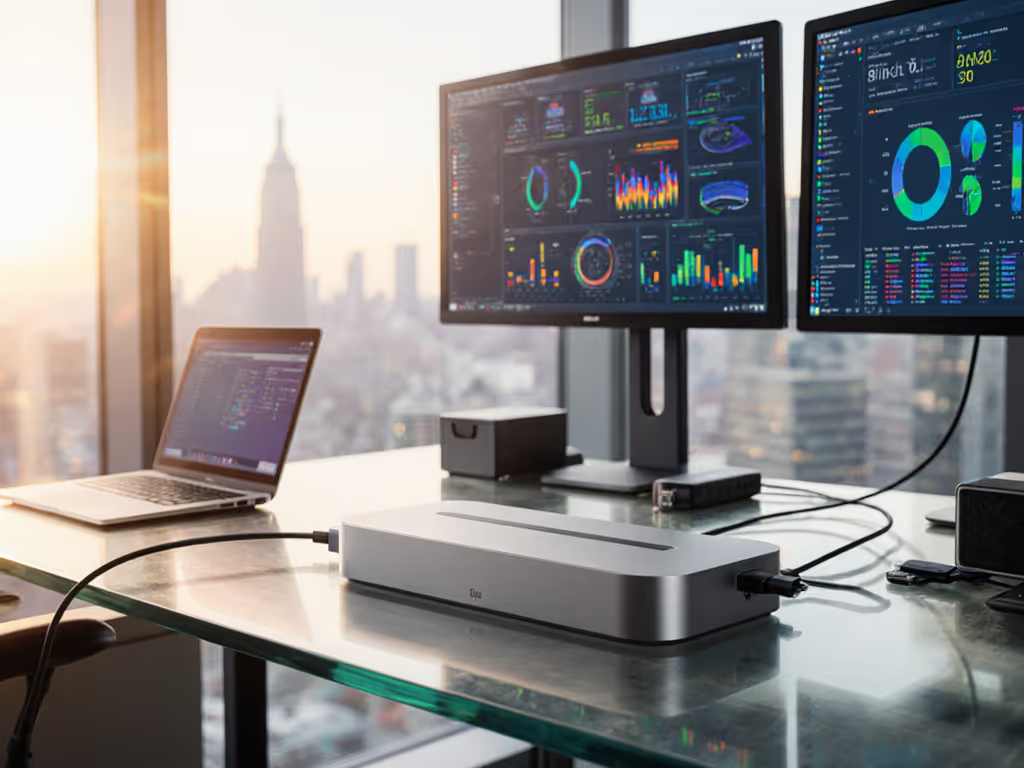
When your IT team deploys smart office docking integration, you're not just connecting monitors and peripherals, you're building a predictable workplace ecosystem docking framework that survives OS updates, laptop refreshes, and hybrid work chaos. For IT leaders managing 50 to 20,000+ endpoints across Windows, macOS, and ChromeOS, docking failures aren't just inconveniences, they trigger helpdesk tickets, derail hot-desk rotations, and make employees question if technology works for them. The solution isn't buying more docks, it's documenting exactly what works, down to cable E-marking, firmware versions, and macOS security settings. If it's not documented, it's not a known outcome.
What Makes "Smart" Docking Different From Basic USB-C Hubs?
Let's define terms first: a desktop docking station provides expanded ports and power over a single cable. "Smart" integration means your deployment achieves three reliability thresholds:
- Consistent pixel delivery: Exact display counts/resolutions (e.g., dual 4K@60Hz) without surprise 30Hz caps or macOS M-series single-display limits
- Sustained power delivery: No battery drain during video calls or renders (critical for 100W+ workstations)
- Zero-touch networking: Ethernet handoffs that survive sleep/wake cycles with MAC address persistence for network policies
Without meeting all three, you're gambling on symptoms like wake from sleep black screens or Wi-Fi fallbacks during Zoom calls. I've seen a nonprofit collapse its hot-desking initiative because untested docks delivered "dual 4K" on spec sheets but only managed 1080p@30Hz on actual Chromebook fleets. Like translating USB4 v2.0 specs into staircase-compliant cable lengths, documentation beats intuition every time.
Why Standard Docking Specs Fail In Mixed-OS Environments
A Dell Latitude dock that works flawlessly on Windows 11 may trigger macOS security prompts blocking kernel extensions. A DisplayLink chipset that handles triple 1080p on Linux drops to single display on Windows 10 22H2. This isn't random failure, it's untested layer interactions.
The "universal dock" myth dies when you confront these realities:
- Thunderbolt 4 vs USB4 vs Alt Mode: TB4 guarantees 40Gbps and dual 4K, but OEM firmware locks often block cross-brand compatibility. A dock working on a ThinkPad may reject a MacBook Pro without vendor-specific firmware. See our Thunderbolt 4 vs USB4 guide for the real differences and compatibility caveats.
- MST (Multi-Stream Transport) fragility: HDMI 2.0b docks claiming "dual 4K" often hit bandwidth limits with macOS, requiring DSC (Display Stream Compression) confirmation in specs.
- OS-specific landmines:
- Windows: 2022 Update broke DisplayLink drivers for 3 weeks, requiring Group Policy rollbacks
- macOS: Security & Privacy > General now requires manual approval for "system software" from unidentified developers
- Linux: X11 vs Wayland affects display ordering with MST hubs
How To Achieve Reliable Display Outcomes (Without Guessing)
Stop hoping HDMI 2.1 cables solve everything. If you're planning multi-monitor workflows, follow our dual monitor docking setup guide to guarantee 4K outcomes on Windows and macOS. For guaranteed pixels, build a known-good pairing matrix covering:
| Component | Validation Check | Failure Symptom |
|---|---|---|
| Laptop GPU | Confirm MST support (Intel Iris Xe yes, UHD Graphics 620 no) | Black screen on 2nd display |
| Dock Firmware | Verify version supports macOS 14.5 Hot Plugging | "No signal" after sleep |
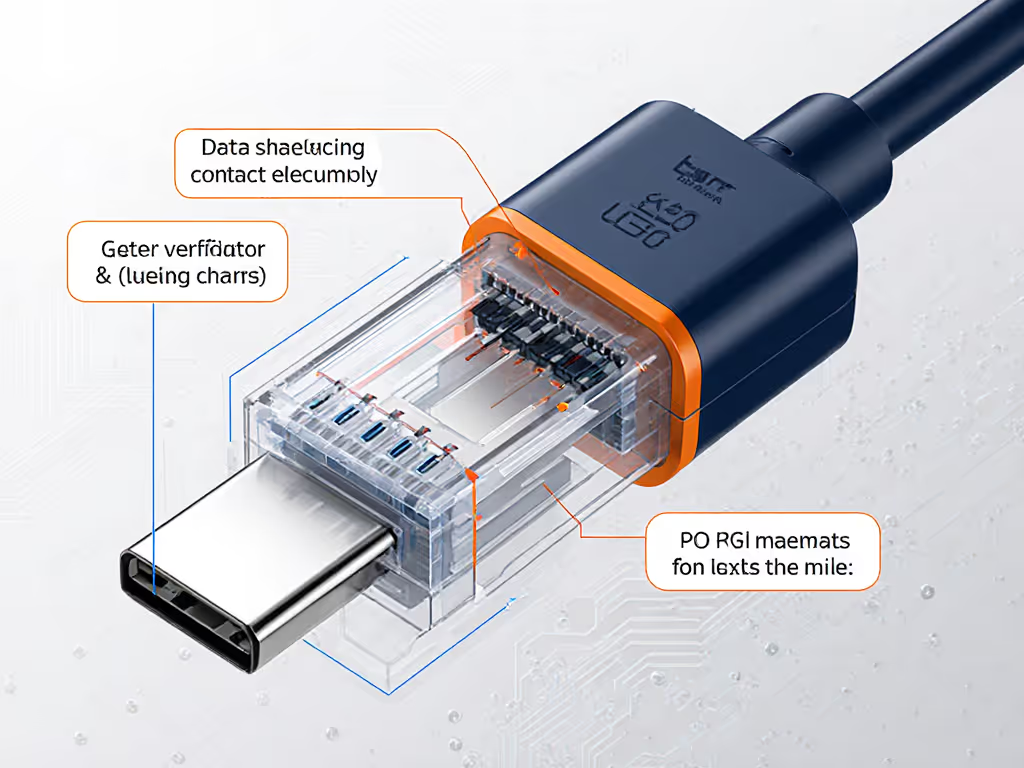
| Cable | Check for E-marker chip (required for >60W PD) | Intermittent 100W+ charging |
| Monitor | Match HDMI 2.0b/DP 1.4 refresh rate caps | 4K@30Hz instead of 60Hz |
For macOS M1/M2/M3 users: Avoid HDMI docks entirely for dual 4K. Use Thunderbolt docks with DisplayPort outputs (Apple's driver stack handles DP MST more reliably). On Windows, force MST mode via:
Settings > System > Display > Multiple displays > Expand desktop across displays
Power Delivery: The 65W Trap And How To Avoid It
Most docks advertise "100W charging", but few sustain it under load. Test these scenarios:
- CPU at 100% + dual 4K displays running
- Laptop discharging during 4K video encoding
- Long cable runs (>1m) with passive adapters
Critical rule: If your mobile workstation requires >65W (e.g., Dell Precision 5680), your dock must deliver sustained 100W+ while driving dual displays. Many USB-C docks throttle to 60W when video bandwidth exceeds 20Gbps, causing battery drain during renders. Document your wattage testing with a USB power meter; don't trust spec sheets claiming "PD 3.0" without load-test data.
Standardized Docking Kits: Less SKUs, Fewer Tickets
Instead of stocking 7 different docks, create persona-based bundles with documented outcomes:
- Knowledge Worker Kit: TB4 dock + 0.8m certified cable + monitor checklist (verifies HDMI 2.0b ports)
- Guaranteed: Dual 1440p@60Hz, 100W sustained power, Ethernet passthrough
- Trader Workstation Kit: Dual DisplayPort 1.4 dock + active fiber HDMI cable
- Guaranteed: Triple 1080p@120Hz, 90W+ under load, audio passthrough

For hot-desk environments, mandate these non-negotiables:
- Identical dock models at every station (no "this one's for Macs")
- Cable retention clips preventing partial insertion
- Firmware baseline enforced via SCCM/Intune scripts For standardized fleets, see our IT-tested enterprise docking stations to minimize compatibility variance.
The Documentation Discipline That Makes Universality Real
After a merger left one healthcare system with 12,000 mismatched docks, their IT team cut tickets by 78% in 90 days (not by buying new hardware, but by building a living matrix of what actually worked). Each row mapped:
- Laptop model (Dell Latitude 7440)
- OS version (Windows 11 23H2)
- Dock SKU (CalDigit TS4)
- Verified outcomes: Dual 4K@60Hz via DP 1.4, 98W sustained under load
- Critical settings: Disabled USB selective suspend in Power Options
This is where precise pairings make universality real. No "should work" claims. No cable shortcuts. Just documented steps that transform a USB-C port into a guaranteed workstation experience. When new staff plug in, they get pixels, not puzzles.
Further Exploration
Want to build your own known-good matrix? Start with these evidence-based next steps:
- Test display handoffs across 10+ common laptop/OS combinations using your monitor models
- Document power draw at 30%, 70%, and 100% CPU load with a USB meter
- Compile OS-specific toggle lists (e.g., "macOS 14.5 requires System Settings > Privacy & Security > allow kernel extensions")
The most reliable hybrid workspaces don't buy the shiniest docks, they document the simplest ones. Because when documentation beats intuition, hot desks stop breaking, and productivity starts flowing. If it's not documented, it's not a solution, it's just another cable waiting to disappoint.